
Microsoft 365多要素認証の設定マニュアル
多要素認証を利用することで、パスワード漏えい時のリスクを低減することができます。
|
※ 2025年10月より、Microsoft 365にログインする際に多要素認証が必須となっております。 多要素認証の設定がされていないとログインすることができませんので、各自で多要素認証の設定を実施して下さい。 |
多要素認証の方式として、以下のものが利用できます。
| 認証方式 | 説明 | 利用できる人 |
| Microsoft AuthenticatorのMFA (この設定マニュアルで説明しているもの) |
iOS/Android用のMicrosoft Authenticatorアプリでの認証 | 学生・教員・職員 |
| パスキー (FIDO2 セキュリティキー) | FIDO2対応のハードウェアキー (YubiKey等) | 学生・教員・職員 |
| パスキー (Microsoft Authenticator) | スマホに保存したパスキー | 学生・教員・職員 |
iOSまたはAndroidのスマートフォンにMicrosoft Authenticatorアプリをインストールして利用できるようにする手順を説明します。

① Microsoftのアカウントページを開く
1-1 Webページにアクセス
PCのWebブラウザから
にアクセスし、サインインします。
すでにサインイン済みの場合は認証はスキップされますので、②の手順に進んで下さい。
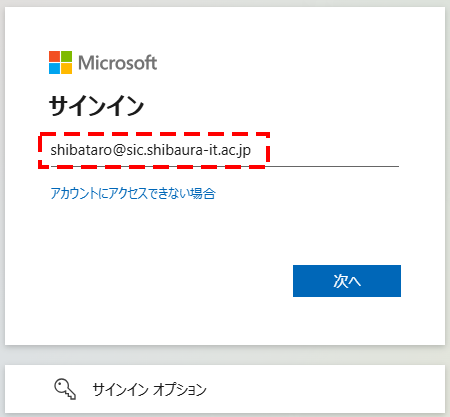
1-2 ユーザIDの入力
Microsoftのサインイン画面に、学術情報センターの
ユーザID@sic.shibaura-it.ac.jp
を入力して「次へ」を押します。
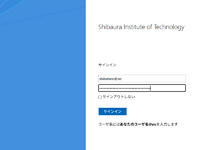
1-3 サインイン
ADFSのサインイン画面が表示されます。
学術情報センターのアカウントでサインインします。
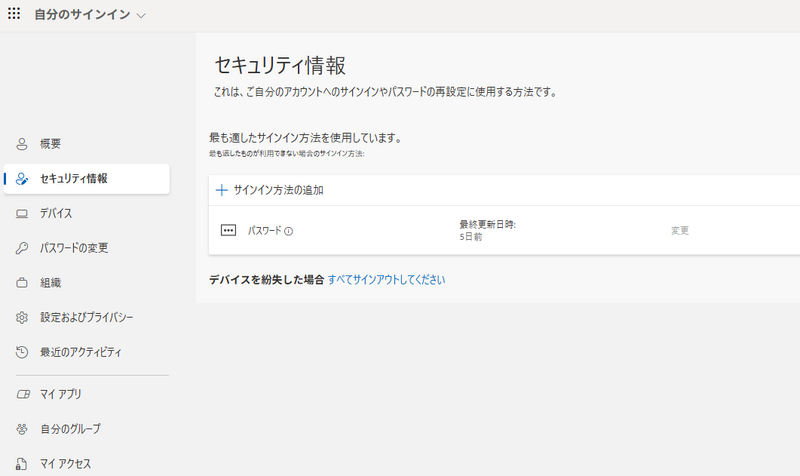
1-4 セキュリティページの表示
サインインに成功すると、「自分のサインイン」のセキュリティ情報のページが表示されます。
この画面のサインイン方法に、自身の身に覚えの無い認証方法(電話番号やソフトウエアトークン等)が登録されている場合は、
不正利用の可能性がありますので、登録情報を削除せずにすぐに情報イノベーション課までご連絡下さい。
② サインイン方法の追加
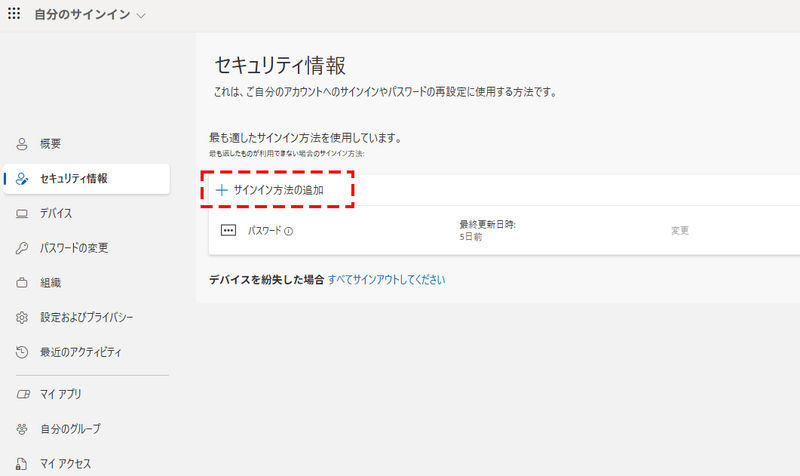
2-1 サインイン方法の追加
「+サインイン方法の追加」を押します。
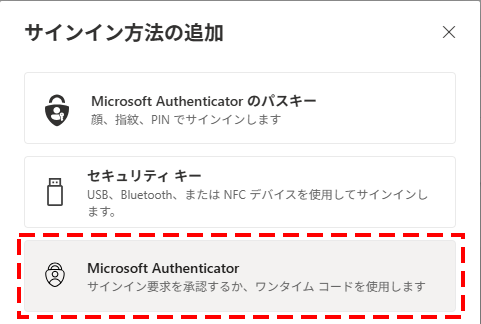
2-2 Microsoft Authenticatorを選択
追加するサインイン方式の選択が画面が表示されますので、
「Microsoft Authenticator」を選択します。
(「Microsoft Authenticatorのパスキー」ではありません)
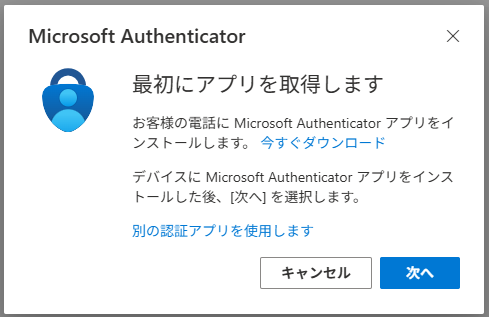
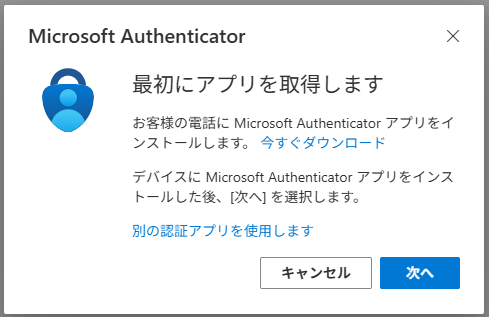
2-3 アプリ取得の表示
アプリの取得を促すページが表示されます。
③ スマホにMicrosoft Authenticatorアプリをインストールする
3-1 アプリのインストール
iOSは、App StoreからMicrosoft Authenticatorアプリをインストールします。
Androidは Google Playストアから Microsoft Authenticatorアプリをインストールします。


④ Microsoft Authenticatorアプリを起動する
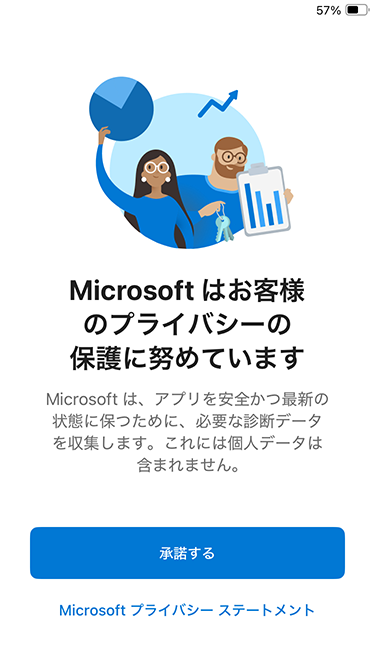
4-1 アプリの起動と画面遷移
プライバシー・ステートメントに承諾します。
続行します。
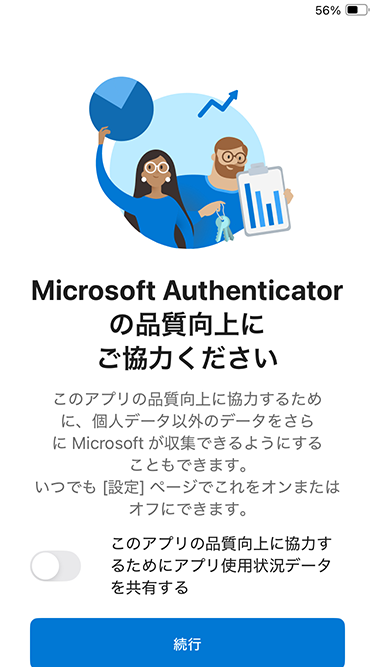
スキップを押します。
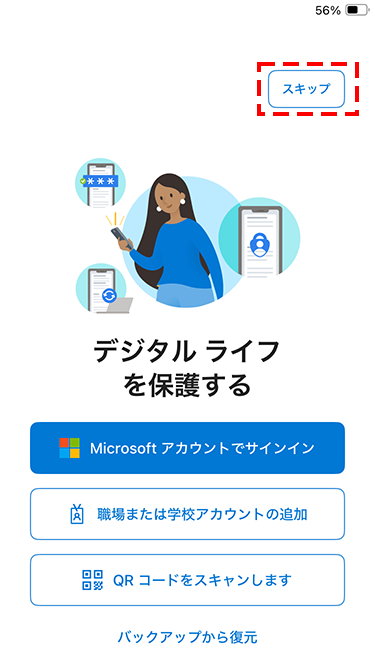
4-2 アカウントの追加
「アカウントを追加」を押します。
(すでに大学以外のアカウントが登録済みの場合は、右上の「+」を押します)
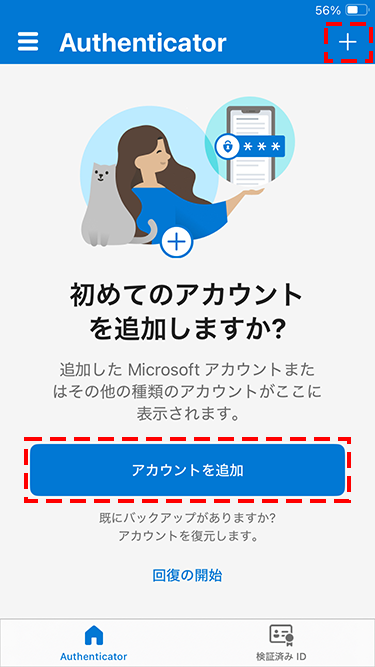
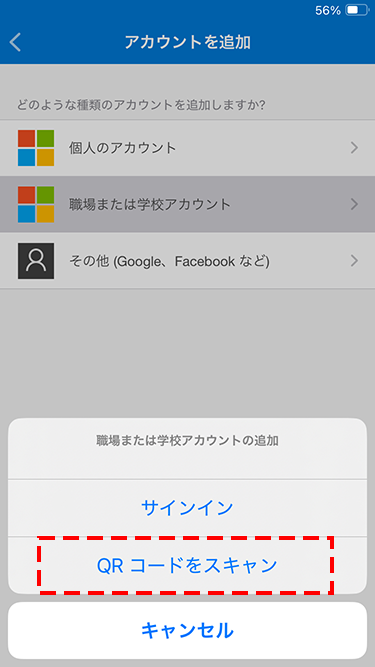
4-3 アカウントの種類の選択
「職場または学校アカウント」を押します。
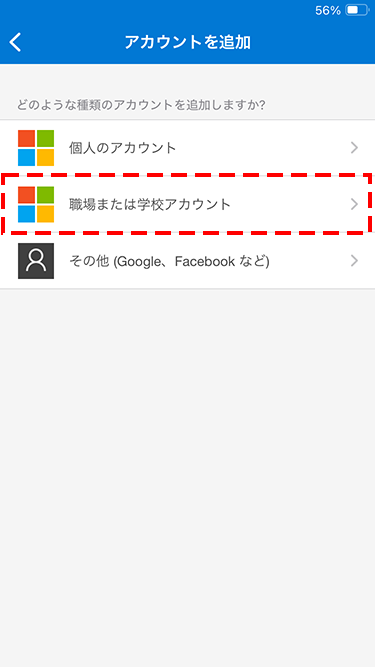
4-4 QRコードのスキャン
「QRコードをスキャン」を押します。
⑤ QRコードをスキャンして登録する
5-1 PCの画面に戻り作業
※2-3の画面からの続き
PCの画面に戻り、アプリの取得画面の「次へ」を押します。
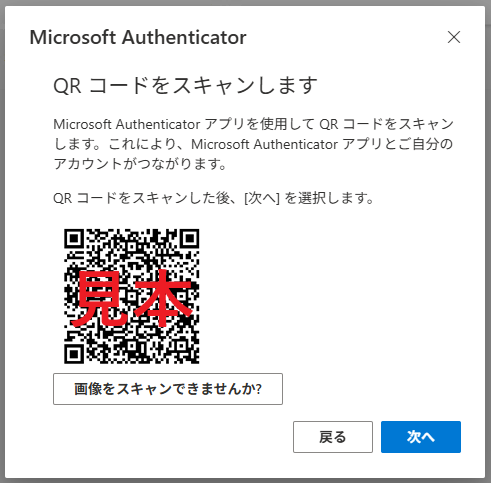
5-2 QRコードの表示
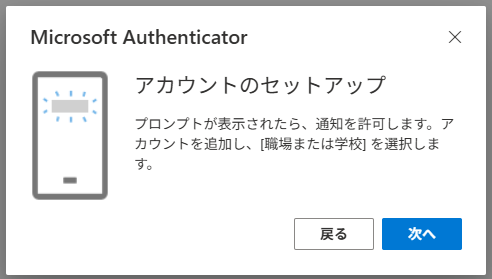
アカウントのセットアップで「次へ」を押します。
QRコードが表示されます。
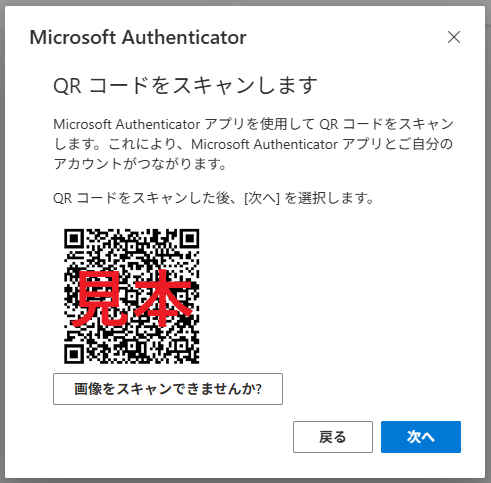
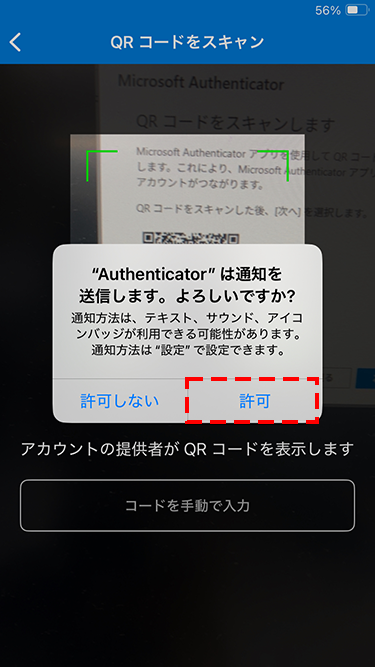
5-3 QRコードのスキャン
4-3で操作していたスマートフォンのMicrosoft Authenticatorアプリで、
5-2で出力したQRコードをスキャンします。
スキャンをすると、通知の送信許可の確認が表示されますので、「許可」を押します。
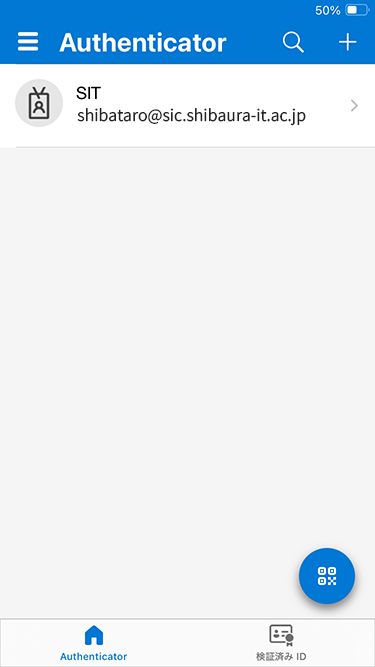
5-4 登録完了
スマートフォンに登録ができました。
5-5 PCのWebブラウザに戻る
5-2で操作していたPCのWebブラウザに戻り、「次へ」を押します。
5-6 番号通知の確認
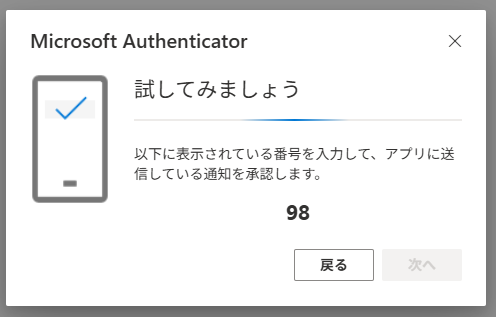
試してみましょうの画面に2桁の数字が表示され、5-4で登録したスマホに通知が届きます。
※「98」はあくまで見本です。
5-7 スマートフォンでの操作
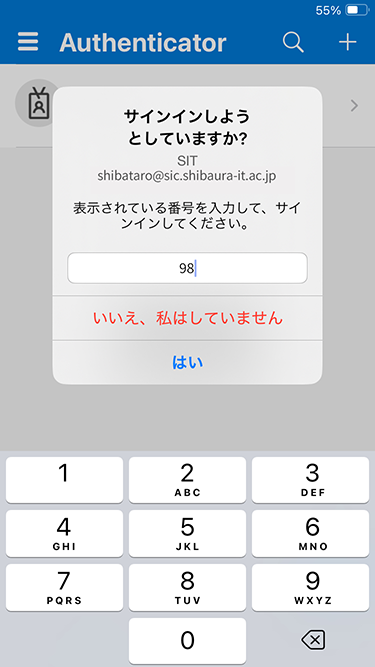
5-6で通知が来たスマートフォンの画面のMicrosoft Authenticatorの画面に、
PCのWebブラウザに表示されている2桁の数字を入力し、「はい」を押します。
※マニュアルでは「98」と入力していますが、その都度、数字は変化します
5-8 登録完了
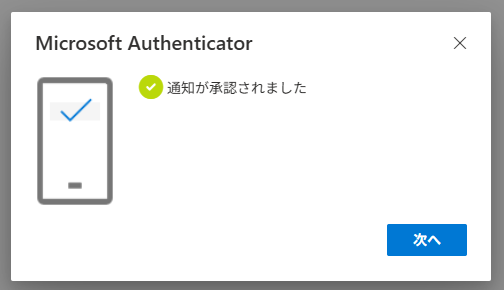
MicrosoftのアカウントにMicrosoft Authenticatorが登録されました。「次へ」を押します。
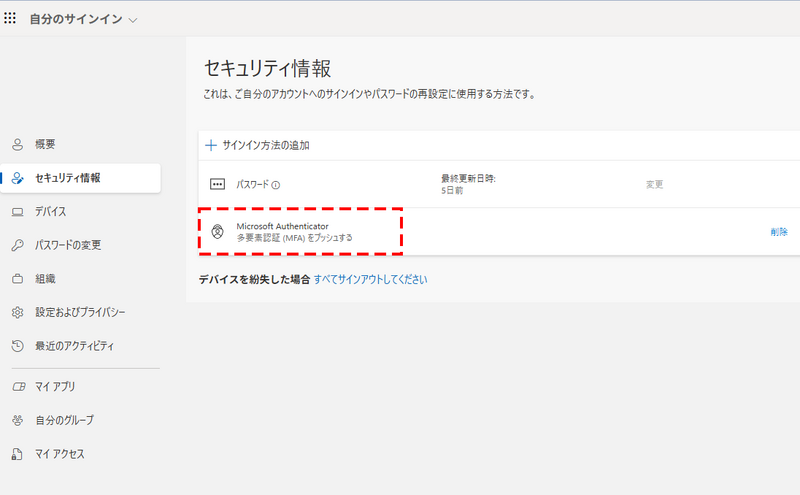
5-9 登録の確認
「セキュリティ情報」に「Microsoft Authenticator」が登録されていれば、登録完了です。
⑥ 利用方法
Microsoft 365 多要素認証の利用方法をご覧ください。
⑦ 機種変更をする場合
スマホを機種変更する場合、新しいスマホをMicrosoft Authenticatorに登録する必要があります。
機種変更前の端末をWiFi等でネットワークに接続して①の手順より、新しい端末を登録してください。
機種変更前の端末が利用できない場合は、個別対応でリセットが必要になりますので、情報イノベーション課までお問い合わせ下さい。