Home > Service > PC Room > How to Change The Language on Your Computer (Windows 11)
How to Change The Language on Your Computer (Windows 11)
Updated 2025/12/05
This describes how to change the language displayed on your computer in the PC room.
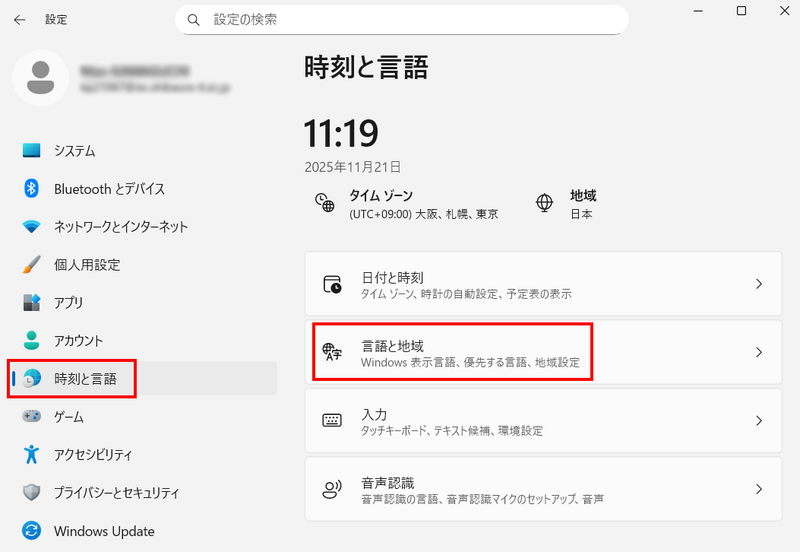
Open “Settings (設定)” from the Start menu, then select “Language & Region (言語と地域)” under “Time & Language (時刻と言語)”.
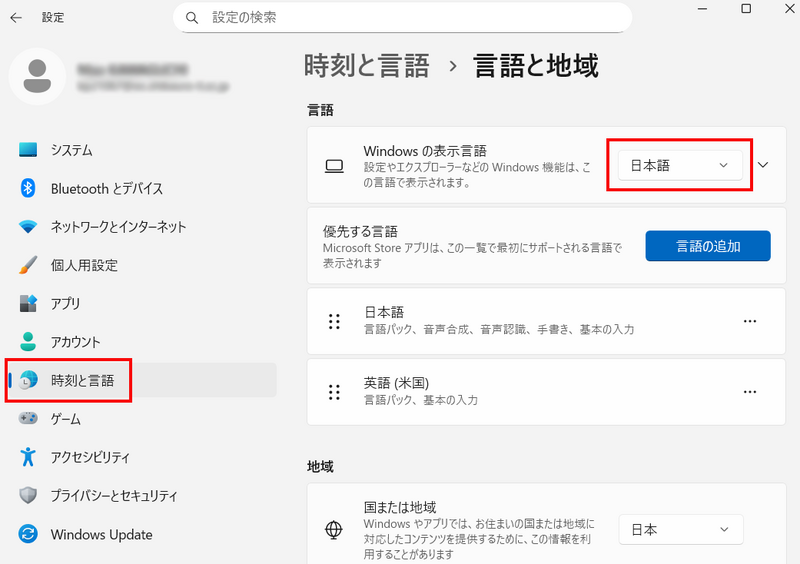
Change the “Windows display language (Windowsの表示言語)” to English.
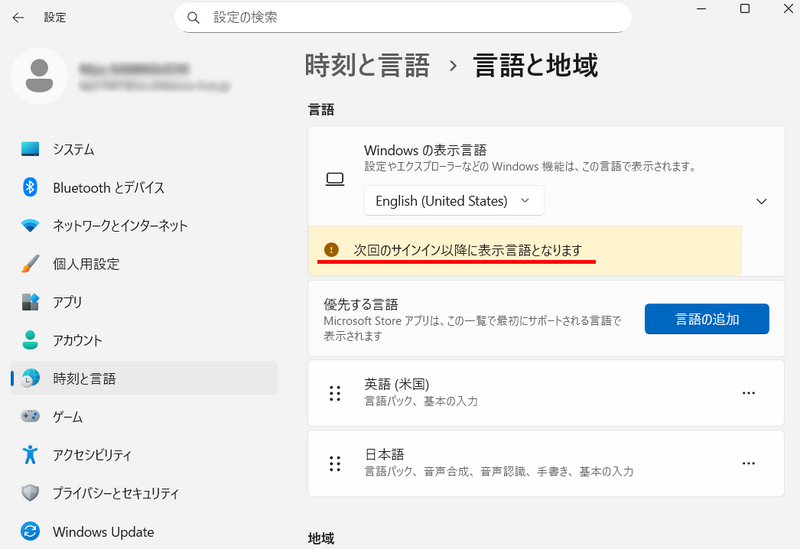
Sign out to change to new language(click the left button). When You sign in again, it's already changed to English.
* The following software is automatically set to English.
・ Microsoft Office
・ Oracle VirtualBox
・ ArcGIS
* For those who want to change keyboard settings
Changing the displayed language does not change the keyboard settings. Another operation is required.
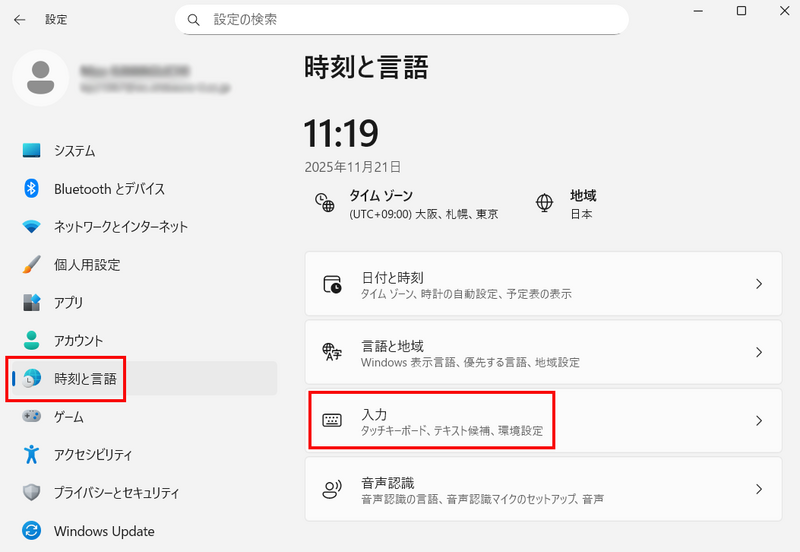
Open “Settings (設定)” from the Start menu, then select “Typing (入力)” under “Time & Language (時刻と言語)”.
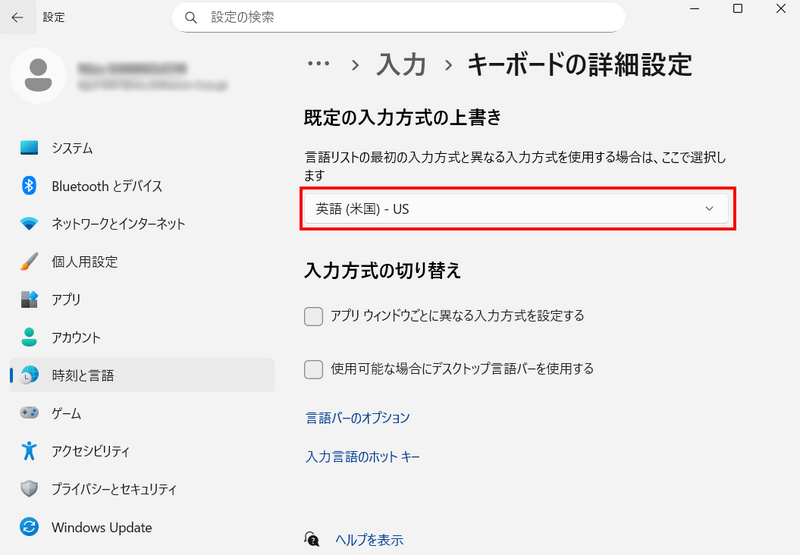
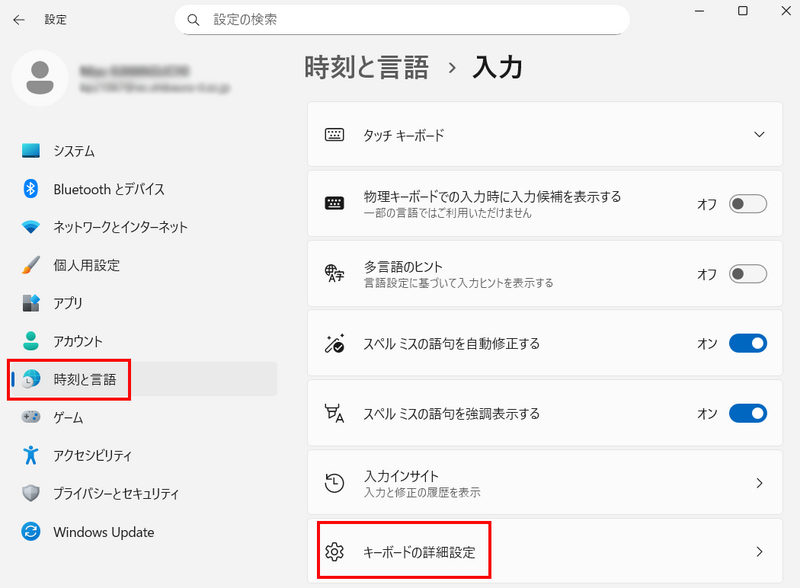
Select "Advanced keyboard settings (キーボードの詳細設定)".
Change the language list to English.