
Home > Services > Accounts & Authentication > Microsoft 365 Multi-Factor Authentication > How to Set Up Microsoft 365 Multi-Factor Authentication
How to Set Up Microsoft 365 Multi-Factor Authentication
2025/12/12 Updated
Starting from October 2025, multi-factor authentication (MFA) has become mandatory for almost all systems related to our university.
By using MFA, you can reduce the risk in case of password leaks.
|
※If you change your smartphone, you need to register the new device in Microsoft Authenticator. Before changing devices, connect your current device to the network (e.g., Wi-Fi) and follow the steps in How to Transfer Microsoft 365 Multi-Factor Authentication to register your new device. If your current device is unavailable, a manual reset is required. |
It is recommended to have both a PC and a smartphone ready for registering MFA (smartphone is required).
Please prepare them before starting.
In the instructions below, the following icons indicate the device to use:


| Table of Contents |
1.Install Microsoft Authenticator App (Smartphone)
1.1

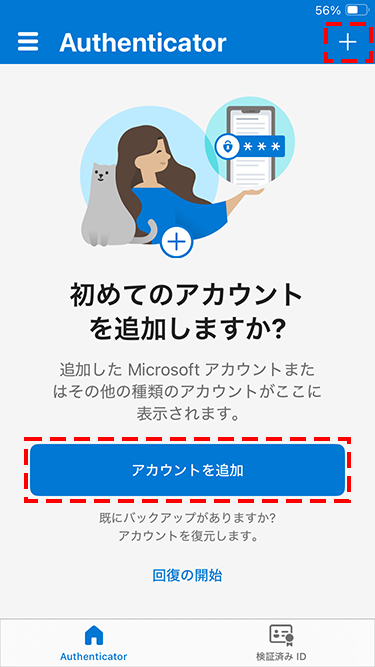
※After installation, open the app once and tap "Continue" or similar until the "Add Account" screen appears.
2.Access ScombZ (PC)
2.1
URL: https://scombz.shibaura-it.ac.jp
Username: Gakujou ID@sic
Password: Windows password
2.2
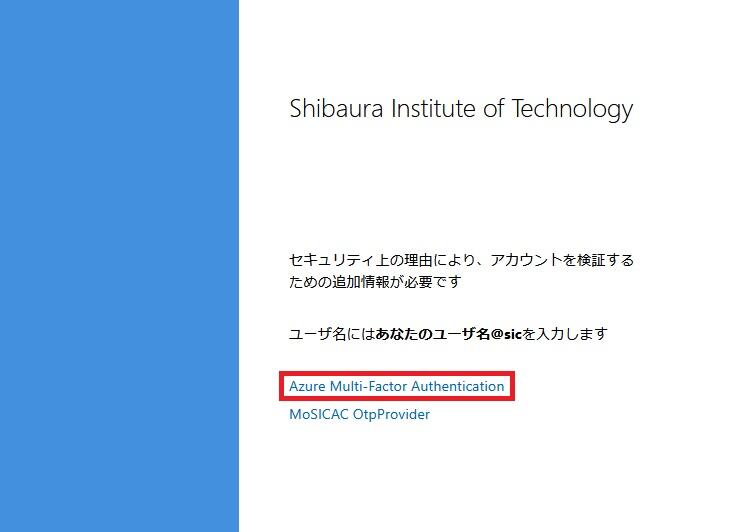
2.3
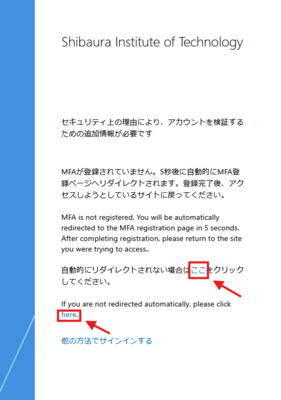
If not redirected, click the "here" link on the screen.
2.4
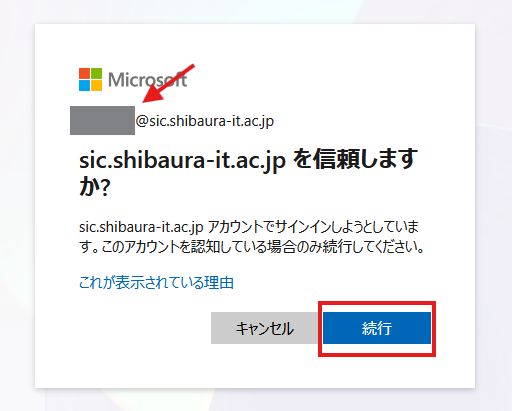
If confirmed, click "Continue".
※If it does not appear, proceed to the next step.
2.5
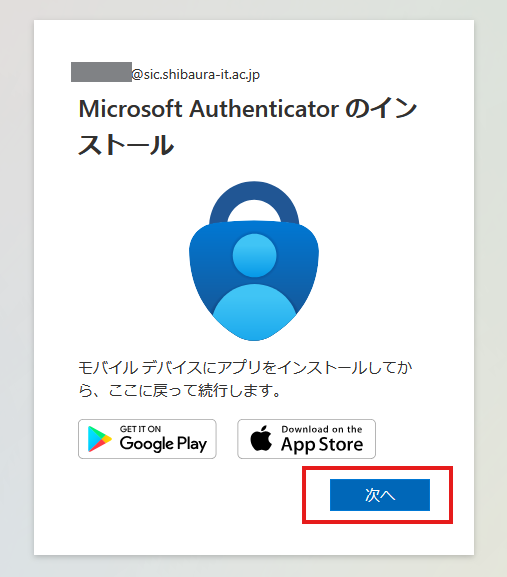
2.6
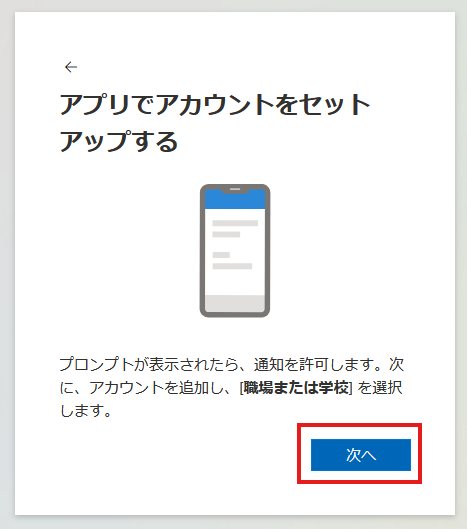
2.7
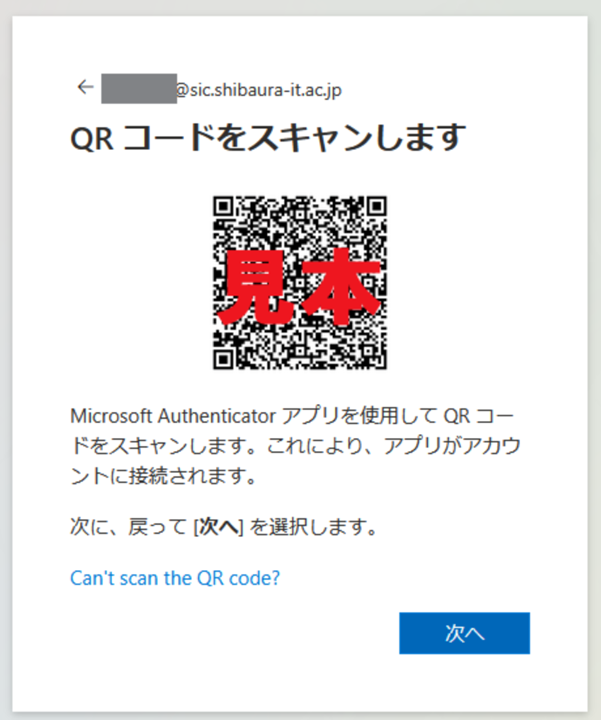
3.Add Account to Authenticator (Both PC and Smartphone)
3.1
Tap the "+" icon at the top right
Select "Add Account".
3.2
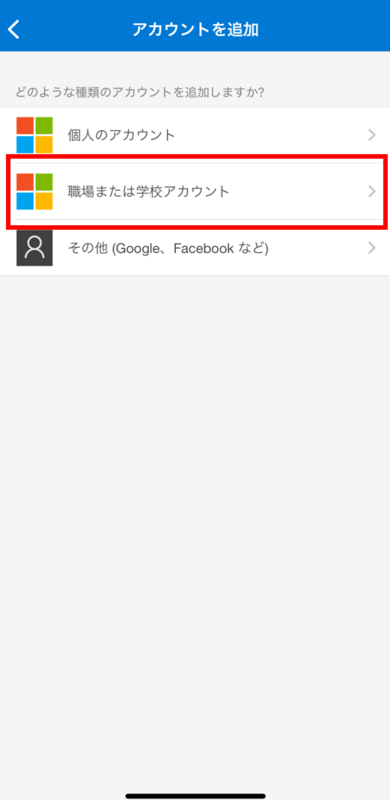
3.3
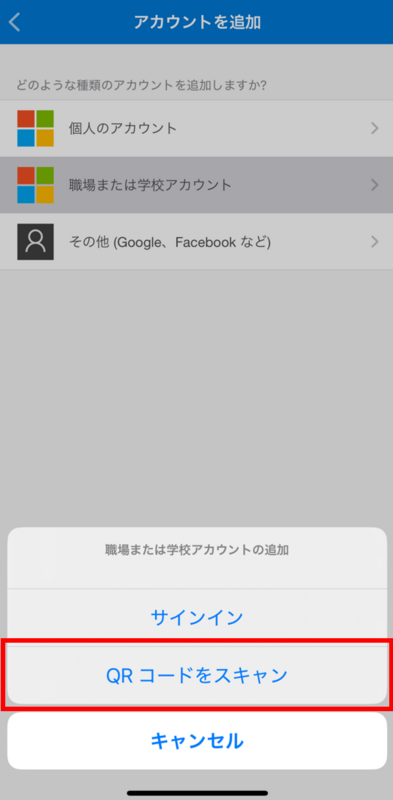
3.4
Then, allow notifications.
※If notifications are not allowed, MFA cannot be used.
3.5 Scan the QR code displayed on the PC with your smartphone. A two-digit code will appear on the PC.
Follow the on-screen instructions and enter the two-digit code in the app, then tap "Yes".
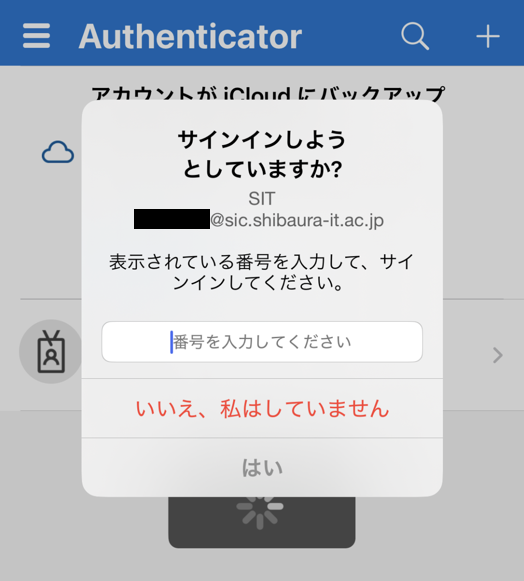
If the PC displays the "Name your app password" screen afterward, set a name with 8 to 16 characters and follow the instructions.
3.7 Microsoft Authenticator sign-in registration is complete.