
Home > Services > Account / Authentication > Microsoft 365 Multi-Factor Authentication > Microsoft 365 MFA Transfer Procedure
Microsoft 365 Procedure for transferring Multi-Factor Authentication
Updated 2025/12/15
Starting in October 2025, multi-factor authentication will be mandatory for almost all systems related to the university.
Using multi-factor authentication reduces the risk of password leaks.
|
※If you change your smartphone, you need to register the new device with Microsoft Authenticator. Please connect your old device to a network (such as Wi-Fi) and follow the steps on this page to register your new device. If your old device is no longer available, an individual reset will be required. |
To register MFA, it is recommended that you have both a PC and a smartphone (a smartphone is required).
Please have them ready before starting the registration process.
The following instructions will display the corresponding icons.


1. When Changing Your Smartphone Model
When changing smartphone models, you must register your new device with Microsoft Authenticator.
Please connect your old device to a network (such as Wi-Fi) and register the new device by following the steps in section 1.1 below.
If your old device is unavailable, a manual reset will be required. Please contact the Information Innovation Division for assistance.
1.1 Installing the Microsoft Authenticator App on the New Smartphone (Smartphone Steps)

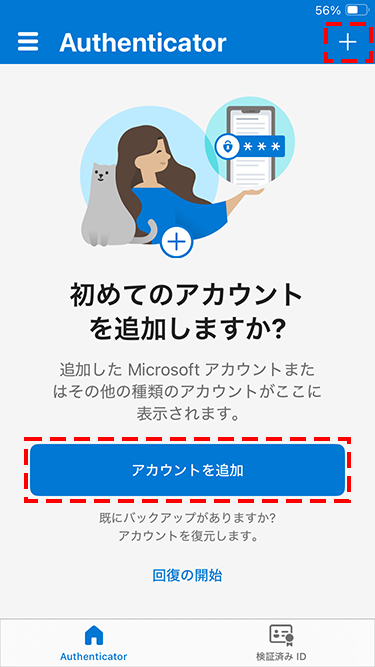
Note: Once installation is complete, launch the app. Tap "Continue" or similar buttons to proceed until you reach the "Add account" screen shown below.
1.2 Accessing the Microsoft Account Page (PC Steps)
1.2.1
URL:https://mysignins.microsoft.com/
※You cannot sign in without authenticating using the Authenticator app on your old device.
1.2.2
1.2.3

1.2.4

1.2.5

1.2.6

1.2.7

1.3 Adding an Account to Authenticator (Steps on both PC and Smartphone)
1.3.1
Tap "+" in the upper right.
Tap "Add account".
1.3.2
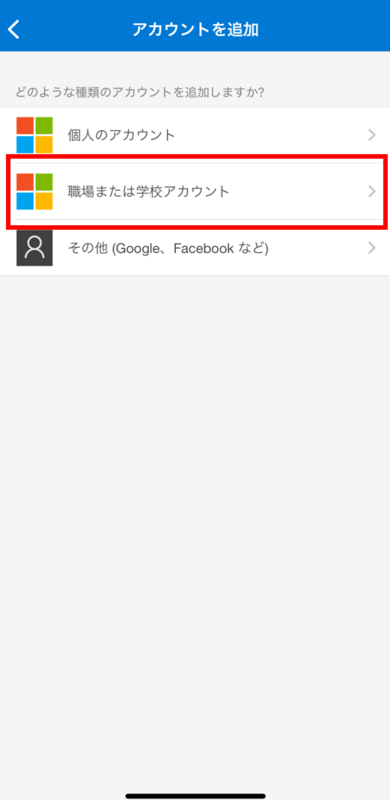
Select "Work or school account".
1.3.3
1.3.4
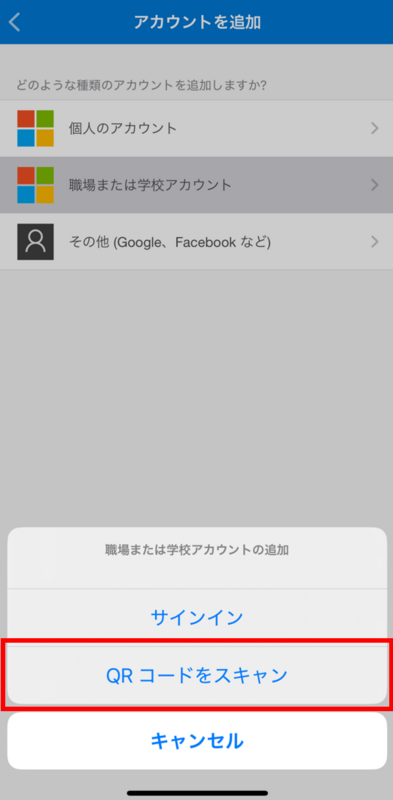
Allow camera access, and scan the QR code displayed on the PC.
Then, Allow notifications.
※Multi-factor authentication will not work if notifications are not allowed.
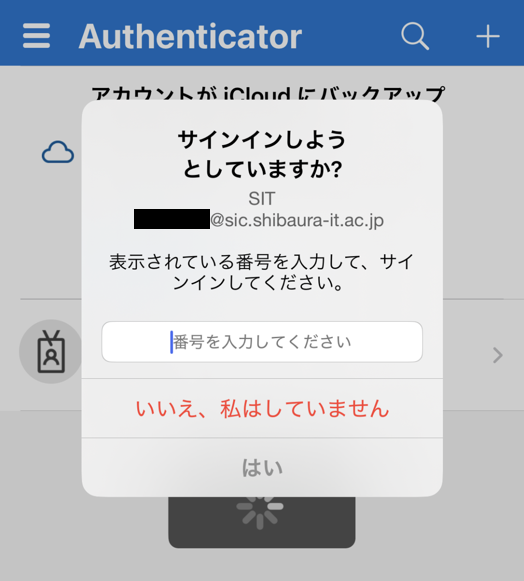
1.3.5 When you scan the QR code on the PC with your smartphone, a 2-digit number will be displayed on the PC.
Follow the on-screen instructions, enter the 2-digit number displayed on the PC into the app, then tap "Yes".
1.4 Deleting the Old Device
Delete the old device.

