Home  >  Service  >  Class support  >  Zoom  >  Manual for online classes(for students who take class with smart phone)
 

Manual for online classes(for students who take class with smart phone)

Updated 2021/07/15


This is a manual how to take online classes with Zoom app.

Preparation

・Smart phone, PC etc.(Device on which video and audio can be viewed)
・Install Zoom app to device.

Confirmation
・Confirm class implementation method.(There are cases in which the class isn't online, please follow the  instruction on ScombZ LMS.)


If you can't access due to a problem with ScombZ,your professer might notify you of URL by email.
Copy&Paste that URL to web browser and conect, then follow the guide 4. below.

1.Access to ScombZ
https://scombz.shibaura-it.ac.jp


User name:Student ID@sic (ex.aa00000@sic)
Password:Windows / ADFS password (Same as scomb password)  


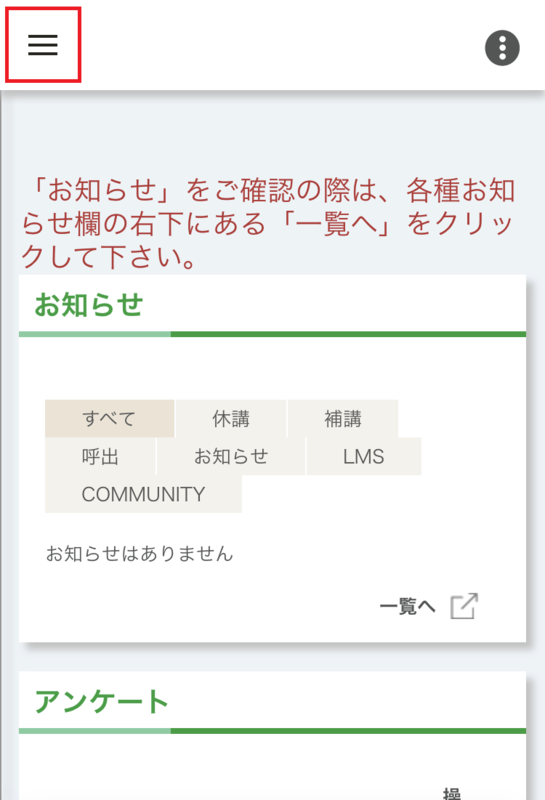
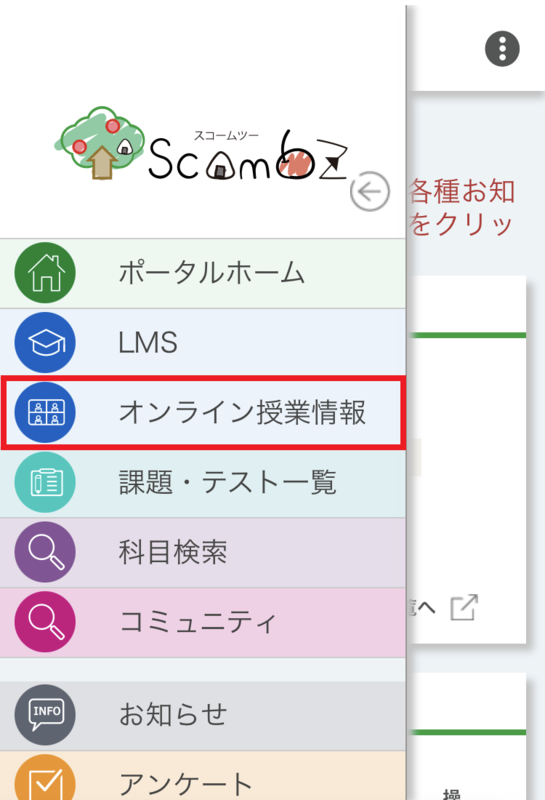
2.Tap the three lines in the upper left corner, then "Online Class Information".


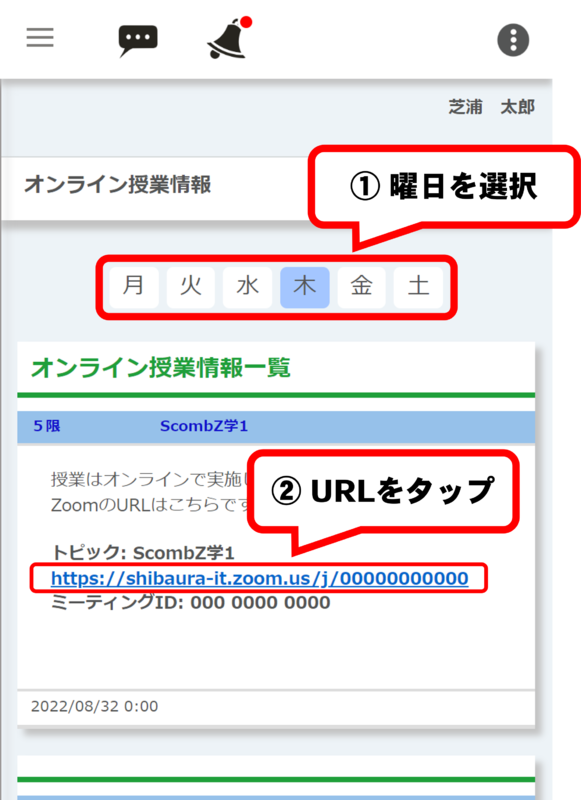
3.Select the day of the week and tap the class URL.
※There are cases in which the class isn't online, please follow the instruction on Scomb LMS.

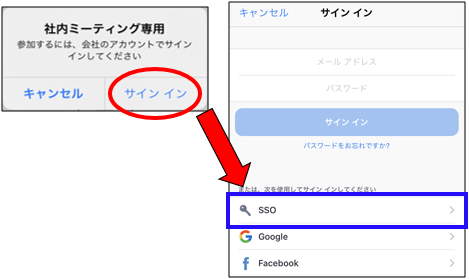
4.Tap "sing in", then tap "SSO". 


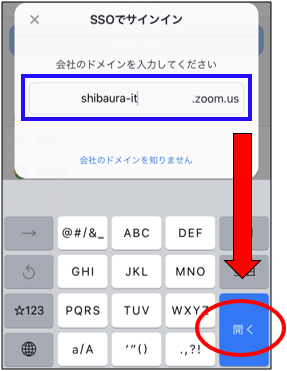
5.Enter "shibaura-it" in domain space and tap "open".


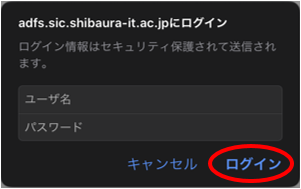
6. Enter your user name and password (same as Scomb) and tap "open".


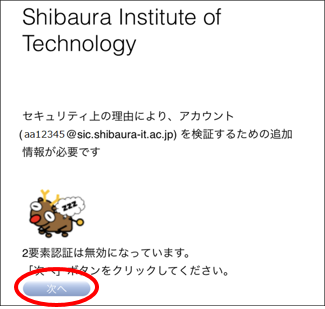
7.Tap "Next".


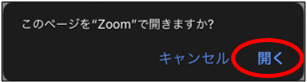
8.Tap "open".


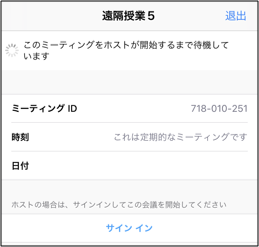
9.Please wait till the class starts.


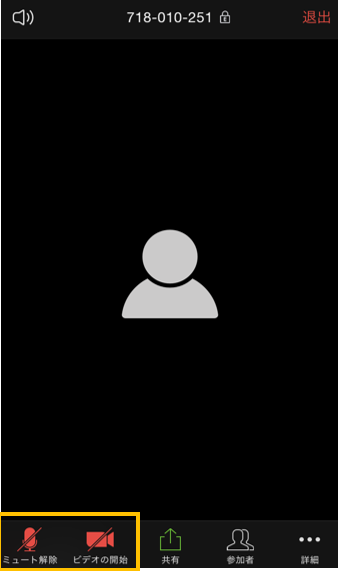
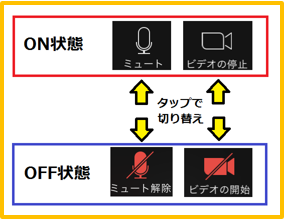
10.After class stars, please check your microphone and video are off.
※Be sure to do this procedure.


※Precaution※

If your microphone or video is on, your voice or you are streamed to your classmate.

Please make sure to set them off.