
ホーム > サービス > 授業支援 > Teams > Microsoft Teamsのインストール方法
How to Install Teams
2026/04/14 更新
This guide explains how to install the Teams app.
|
Contents 1.Access the Microsoft website |
Windows Installation Guide
1.Access the Microsoft website
Please access the installation page from the link below.
Desktop version installation site
2.Select the app
Select “Download Microsoft Teams for Windows”(Windows用のMicrosoft Teamsをダウンロードする) to download the app.
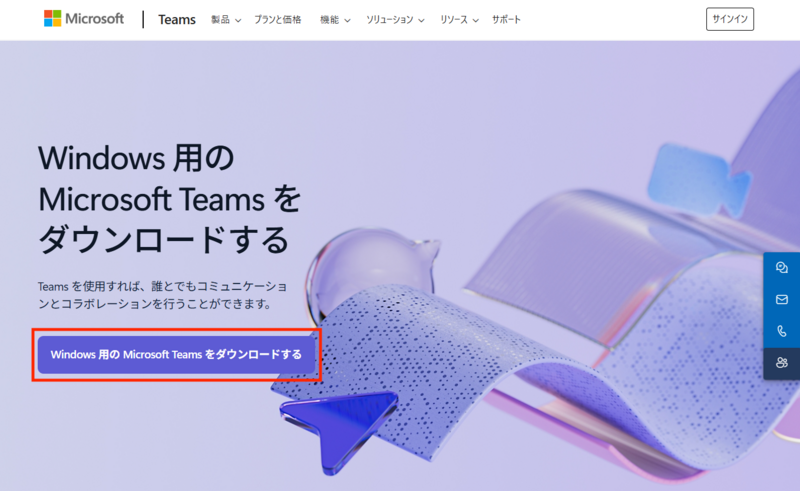
3.Run the .exe file
Click and run the installed MSTeamsSetup.exe file.

For sign-in instructions, please refer to the links below.
・[For Students] How to Sign In to Microsoft Teams
・[For Faculty] How to Sign In to Microsoft Teams
Mac Installation Guide
1.Access the Microsoft website
Please access the installation page from the link below.
Desktop version installation site
2.Select the app
Select “Download Teams for Mac” (Mac用のTeamsをダウンロードする)to download the app.

3.Install the app
3.a. In the Downloads folder, click the “MicrosoftTeams.pkg” file to open the installer.

3.b. Click Continue(続ける).
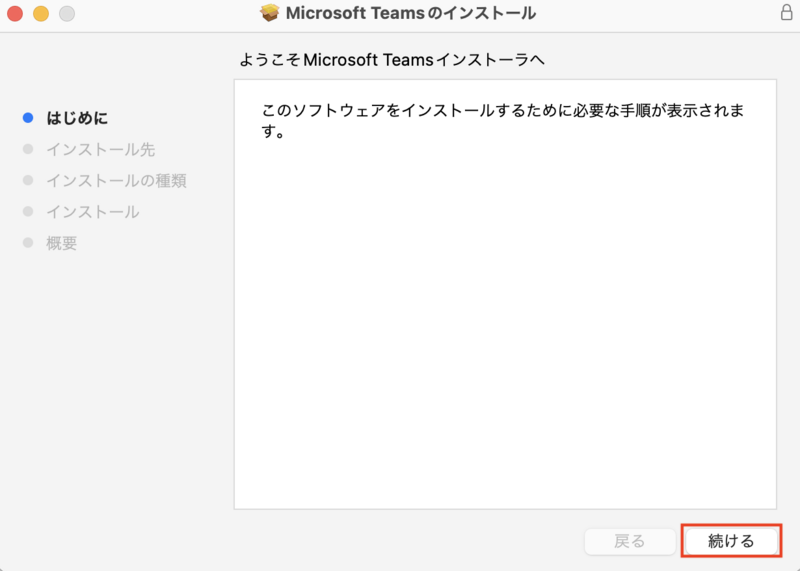
3.c. Click Continue(続ける).
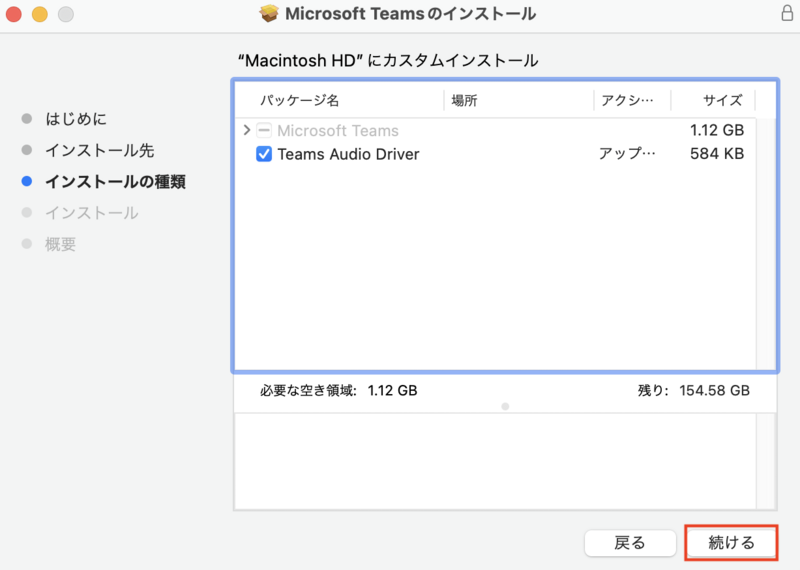
3.d. Click Install(インストール).
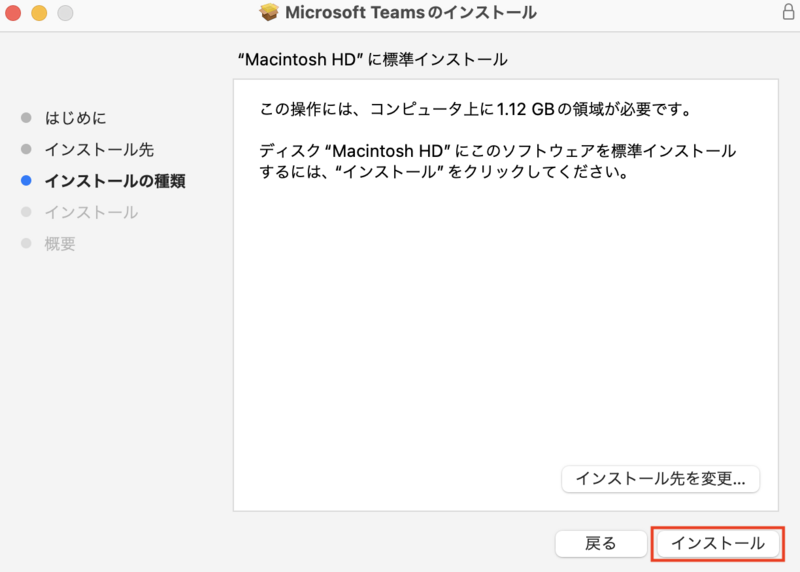
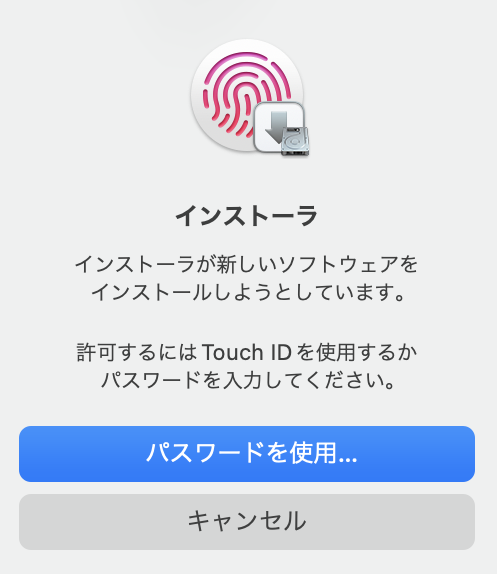
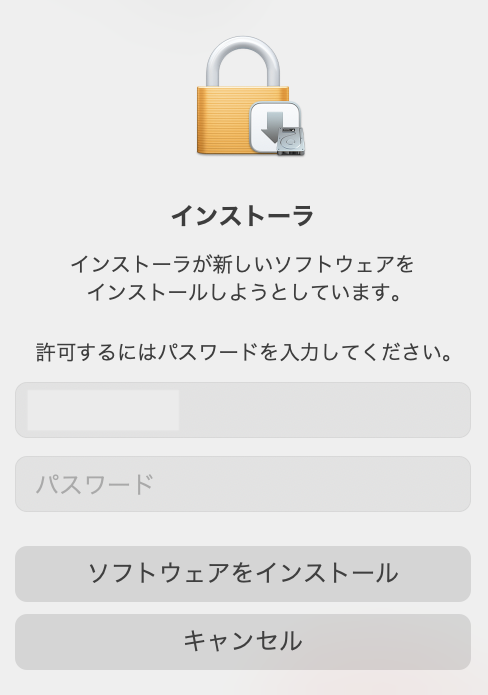
3.e. Use Touch ID or enter your Mac password to begin the software installation.
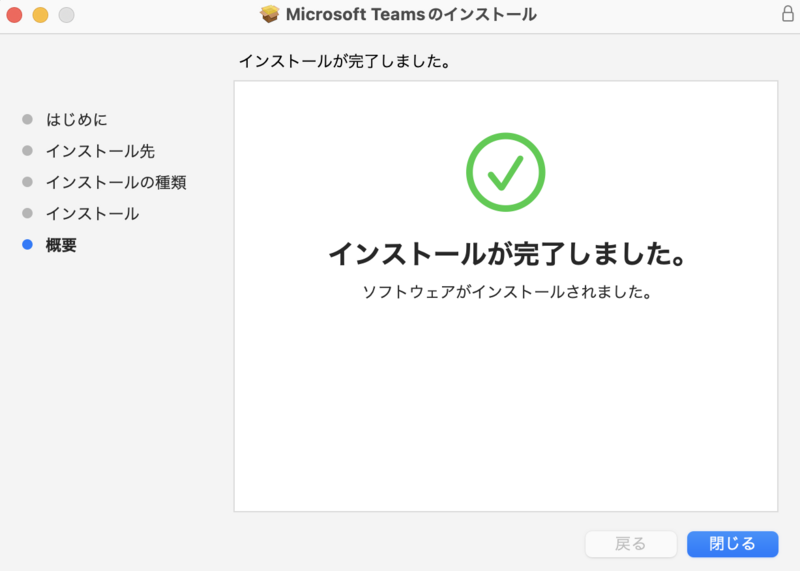
3.f. Once the installation is complete, click Close(閉じる).
For sign-in instructions, please refer to the links below.
・[For Students] How to Sign In to Microsoft Teams
・[For Faculty] How to Sign In to Microsoft Teams