Home > Services > Class Support > Online Classes > Access Zoom Meetings and Cloud Recordings from ScombZ
Access Zoom Meetings and Cloud Recordings from ScombZ
2026/04/25 更新
By launching Zoom from the Zoom link in ScombZ,
you can link a Zoom meeting with the course LMS in ScombZ.
Benefits of linking with ScombZ
・Course instructors, TAs, and enrolled students can join the Zoom meeting simply by accessing it from ScombZ.
・Users can access only meetings and recordings associated with the course through the course LMS in ScombZ.
|
目次 1. Access Zoom in the ScombZ Course LMS 3. How to View Cloud Recordings |
1. Access Zoom in the ScombZ Course LMS |
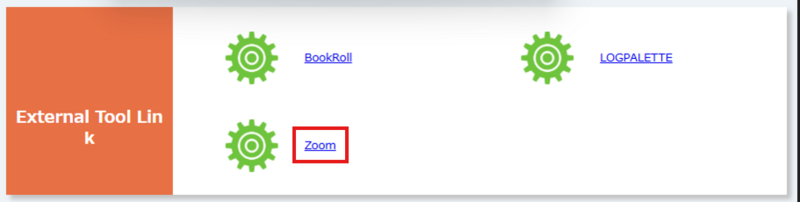
1.1. Click the “Zoom” link in the “External Tools” table in ScombZ.
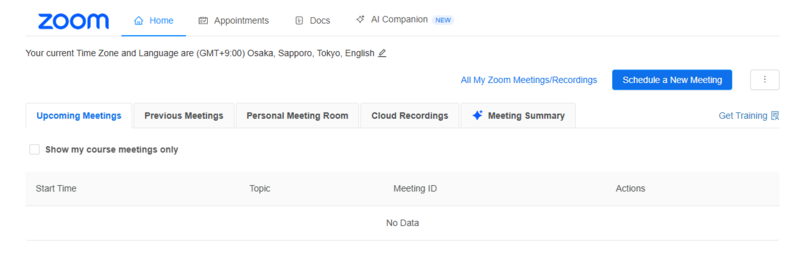
1.2. The Zoom screen will open.
2. How to Join a Meeting |
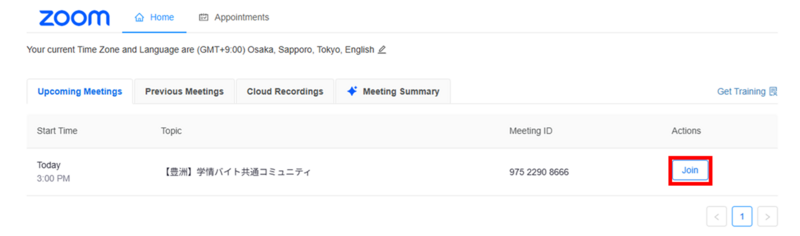
2.1. Make sure the “Upcoming Meetings” tab is selected, then click “Join” next to the meeting you want to attend.
2.2. Zoom will launch and the meeting will begin.
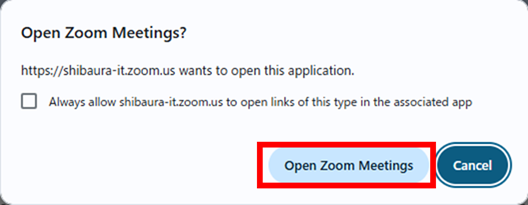
If a confirmation dialog appears asking "Open Zoom Meetings.", click "Open Zoom Meetings".
3. How to View Cloud Recordings |
You can view cloud recordings that have been made available by the instructor (host).
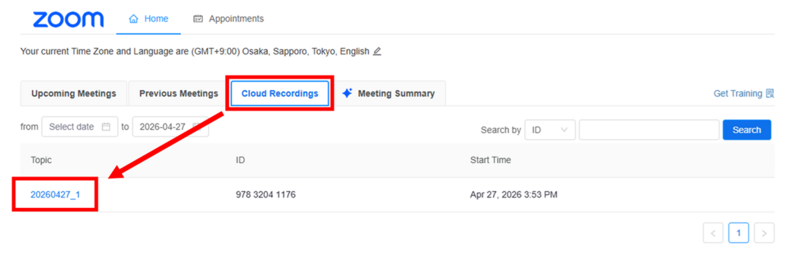
3.1. In the Zoom Home screen opened from ScombZ, click the “Cloud Recordings” tab, then click the recording topic you want to view.
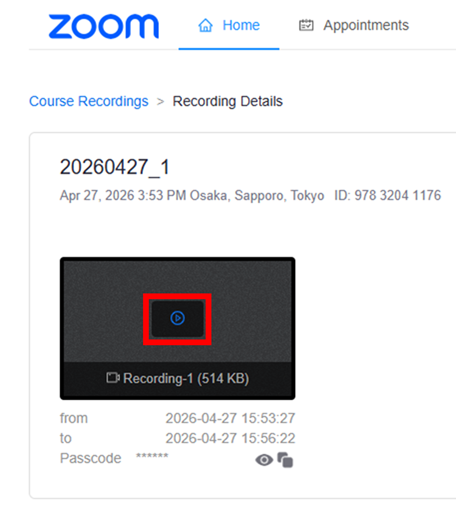
3.2. Double-click the play button on the thumbnail.
If prompted for a passcode, press Ctrl+V to paste it into the text box.
※The passcode for viewing the recording is automatically copied to your clipboard when you click the play button.
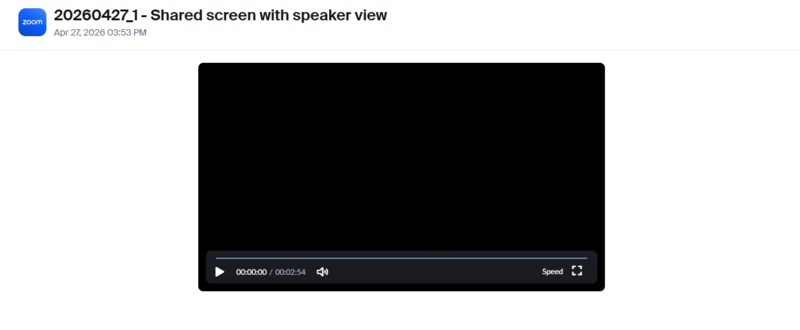
3.3. The video will be displayed. Click the play button to view it.
4. How to Use AI Companion |
By using AI Companion during a meeting, you can access real-time Q&A features.
After the meeting, you may also be able to view an AI-generated Meeting Summary, depending on the host (instructor)’s settings.After the meeting, you may also be able to view an AI-generated Meeting Summary, depending on the host (instructor)’s settings.
※Only the host (instructor) can enable or disable AI Companion. Participants (e.g., students in regular classes) cannot control this setting.
4-A. How to Use AI Companion During a Meeting
4-A.1. 
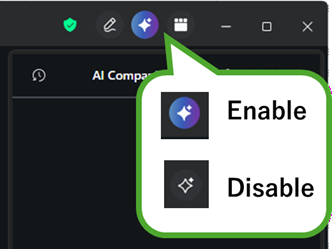
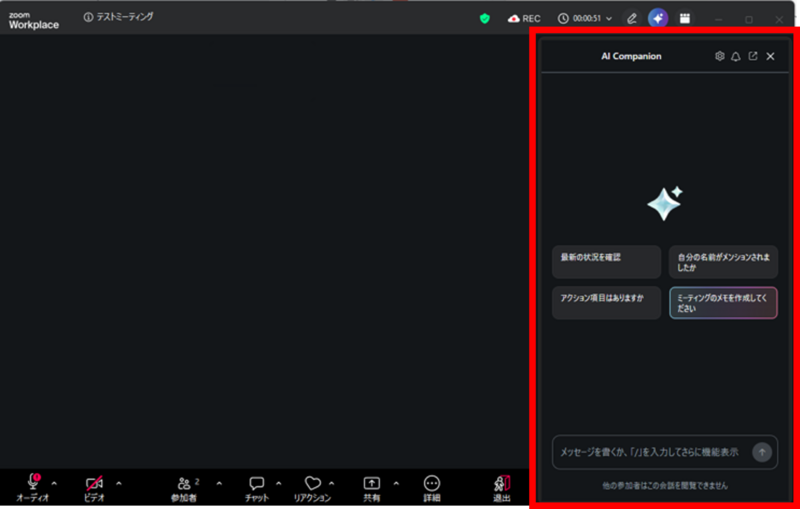
4-A.2. During the meeting, a chat panel appears on the right side of the screen, allowing participants and the host to ask AI questions related to the meeting.
AI answers based on the content from the point when the participant joined.
4-B. How to View the Meeting Summary After a Meeting
The Meeting Summary is a feature that allows AI to automatically generate a summary of the meeting based on recorded data.
Summaries made available by the host (instructor) can also be viewed by students.
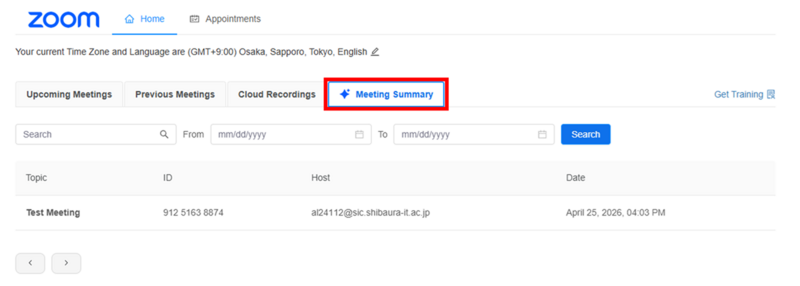
4-B.1. On the Zoom Home screen opened from ScombZ, click “Meeting Summary.”
4-B.2. Click the meeting title shown under the topic.
※Depending on the length of the meeting, such as a class, it may take some time for the generated summary to appear.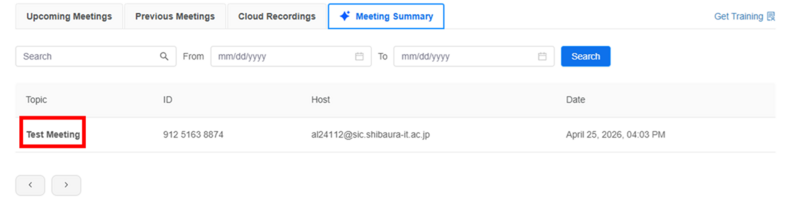
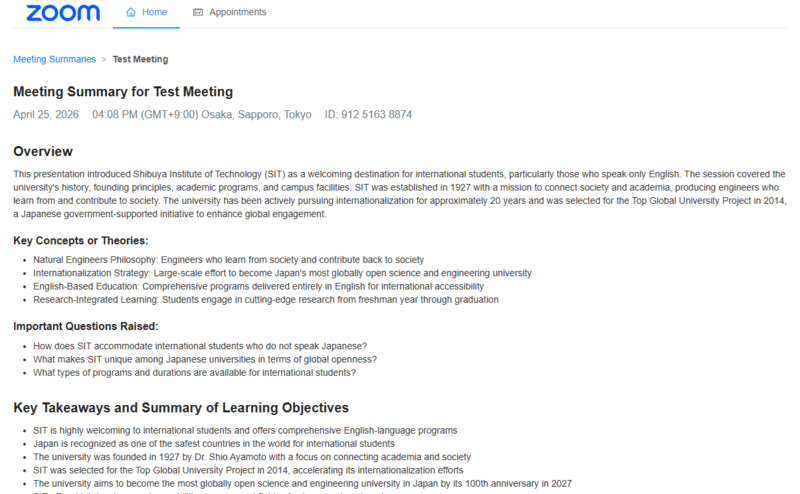
4.B.3. The summary will be displayed.
※Some items may not be generated depending on the length or content of the meeting.