
Home > Frequently used guides and links > Frequently used guides and links (the first time) > Guidelines for new students > omedeto_din > Let's use e-mail
Let's use e-mail
Updated 2026/03/24
Shibaura Institute of Technology provides Gmail as your university email service.
Notices from the university and class-related information will be sent to this email account.
Since sending and receiving email is essential for student life, please make sure you are able to use it.
| Achievement goal | ・Be able to log in to Gmail ・Be able to check received emails |
Important: One month after enrollment, you will no longer be able to log in to accounts that do not have two-step verification enabled.
How to Log In to Gmail
Your email address is:
「SIC ID@shibaura-it.ac.jp」
Example: aa00000@shibaura-it.ac.jp
* If you do not know your SIC ID, please check the email titled “[Shibaura Institute of Technology] Important Notice Regarding Account Setup” which was sent to the email address you registered during your application or enrollment procedures.
|
Contents 1. How to Set Up Google Two-Step Verification 1.1 Add Your Account 1.2 Set Up Two-Step Verification from the Settings Menu 1.3 Set a Recovery Phone Number |
1. How to Set Up Google Two-Step Verification
Two-step Authentication is required to log in to your university Google account.
A smartphone is required for this setup.
(If the Gmail app is not installed, please install it from the App Store or Google Play.)
1.1 Add Your Account
1.1.1. Open the Gmail app, tap the account icon in the upper-right corner, and select “Add another account."
(If this is your first time using the Gmail app, the screen may look slightly different.)

1.1.2. Select “Google.”


1.1.3. Log in with your university account (SIC ID@shibaura-it.ac.jp).
For new students, the password is the Google password you set in Step 1 (the same as your Windows password).
* Be careful when using copy and paste, as unintended spaces may be inserted and cause a password error.
* If you did not check “Also change the university Gmail password,” it may not match your Windows password.
* If you continue to get password errors even when typing it directly, please go back to Step 1 and set your password again.


1.1.4. Review the Terms of Service, scroll to the bottom, and tap “I understand.”


1.2 Set Up Two-Step Verification from the Settings Menu
1.2.1 Tap the account icon in the upper-right corner.

1.2.2 Tap “Manage your Google Account.”

1.2.3. Go to “Security” and then “2-Step Verification.”


1.2.4. When the 2-Step Verification page opens, scroll to the bottom and tap “Turn on 2-Step Verification.”


1.2.5. Tap “Done.”

1.3. Set a Recovery Phone Number
1.3.1. Open “Recovery phone” from the “Security and sign-in” settings.
You will be asked to enter your password at this point. Please do so.

1.3.2. Select “Add recovery phone.”
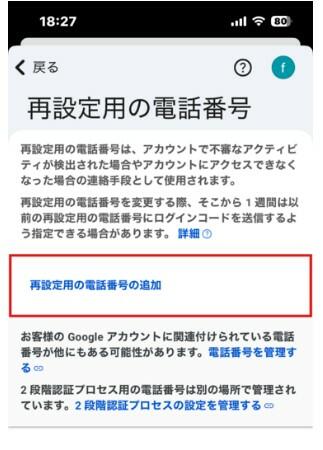
1.3.3. Select your country and enter your phone number.
This completes the setup of your recovery phone number.

1.4. Set a Recovery Email Address
1.4.1. Open “Recovery email” from the “Security and sign-in” settings.
You will be asked to enter your password at this point. Please do so.
1.4.2. Select “Add recovery email.”
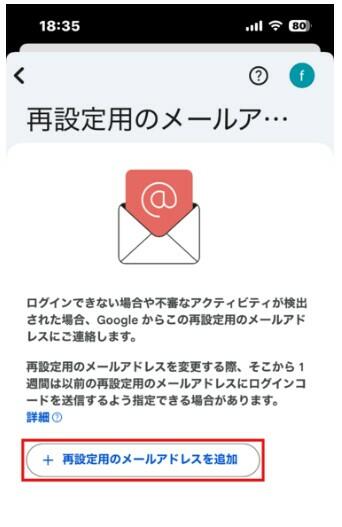
1.4.3. Enter an email address you personally use, other than your university student email address.

1.4.4. A confirmation code will be sent to the email address you entered. Enter that code.
This completes the setup of your recovery email address.

2. How to Log In to Gmail Using Two-Step Verification
2.1 Go to Gmail (https://mail.google.com)
2.2 Enter your university Gmail address and click “Next”
Example: aa00000@shibaura-it.ac.jp

2.3 Enter your password and click “Next”

2.4 A notification will be sent to a Google app on your smartphone (such as YouTube or Gmail)

2.5 Confirm that it is your device and select “Yes, it’s me”
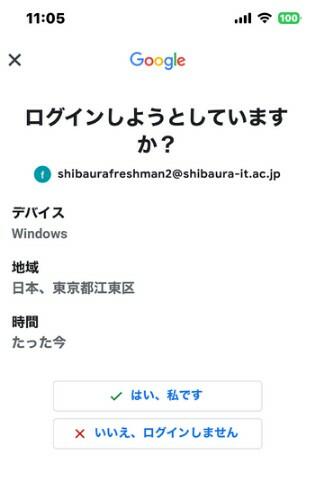
2.6 You have now successfully logged in to Gmail
Fin. The setup is complete.
Let’s review what you completed on this page.
★ In “1. How to Set Up Google Two-Step Verification,” you enabled Google two-step verification.
★ In “2. How to Log In to Gmail Using Two-Step Verification,” you logged in to Gmail using two-step verification.
If you have completed both, proceed to the next step: “Get Ready for Classes”.
EX. How to Set Up Two-Step Verification for Those Without a Smartphone
What if it doesn't work or I'm not ready?
Please contact oshiete@sic.shibaura-it.ac.jp
※Student staff will reply to student inquiries mail. Please pay attention to the content.
For details on how to contact us, please click here.