
Home > Frequently used guides and links > Frequently used guides and links (the first time) > Guidelines for new students > omedeto_din > Let's set a password
Let's set a password
Updated 2026/03/25
At Shibaura Institute of Technology, you will need to use various accounts and passwords depending on your purpose.
The passwords you set here and for sending and receiving emails will be essential during your university life, so be sure to set them.
| Achievement goal | ・Windows password can be set. ・In addition, a password for Gmail and a password for connecting to the campus wireless LAN can be set. |
1. Role of various passwords and how to set them
This section briefly explains the use of various passwords. This page describes the settings for Windows passwords and Google passwords.
If you would like to know more details about passwords, please refer to the Account page.
| Password Type |
Services and situations to be entered by the start of class |
How to set up/where to find the information |
| Windows Password |
Scombz, S*gsot, Zoom(Other On-Campus Services) |
this page |
| Google Password | Gmail Login | this page |
| SRAS Wireless LAN Password | Connect to SRAS Wireless LAN | set in AMI |
2. How to set your password
2.1 Access "Password reset form" 
※If you cannot access the link even after clicking it
Please try accessing it from your smartphone.
In that case, do not connect to Wi-Fi - use your mobile data connection instead.
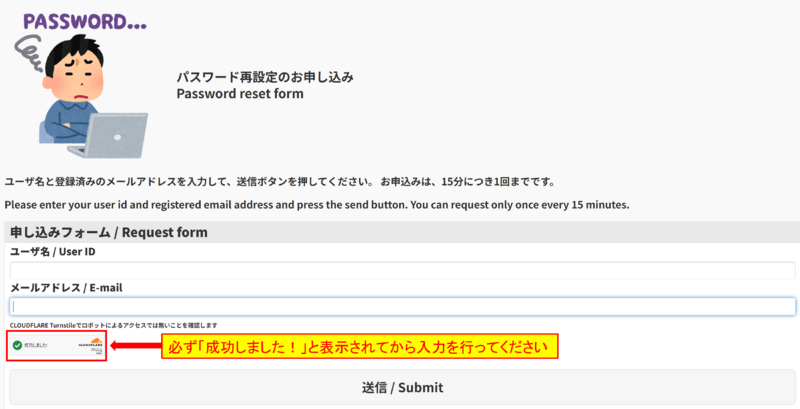
2.2 Enter your username and email address in the application form
Enter your username and e-mail address on the application form.
※The username and e-mail address are listed in the “Important Notice Regarding Account Setup” sent to the e-mail address you registered at the time of application or during the enrollment process.
※We plan to send the "Important Notice Regarding Account Setup" via email on the afternoon of Friday, March 28.
Username: SIC ID (use lowercase letters for the alphabetical characters)
Email address: registered email address
Example) Your SIC ID is aa00000, and the registered email address is user@example.com
Username: aa00000
Email address: user@example.com
After entering, click submit.
※Please send it after the section highlighted in red in the image displays "Success".
2.3 Confirm Email
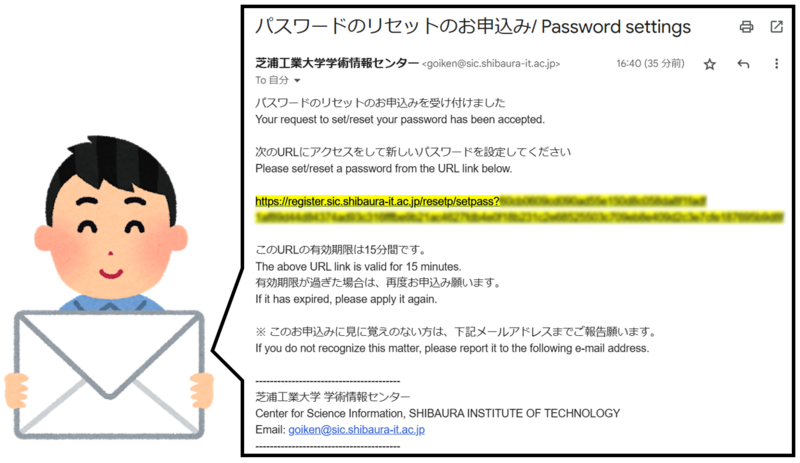
After clicking the submit button, the URL for password reset will be sent to the email address you entered with the subject line “Password reset request/ Password settings”.
※It may take a few minutes.
2.4 Access the URL for password reset
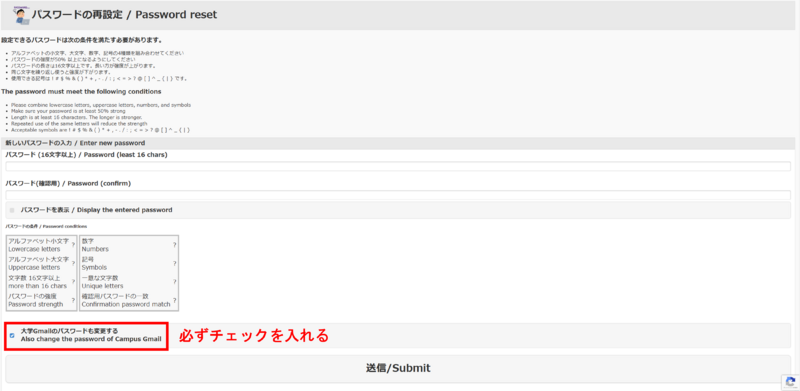
Access the URL in the email you received and enter your new password.
At this time, please be sure to check the "Also change the password of Campus Gmail" checkbox.
The password you enter here will become your Windows password/Google password.
※If you do not check the "Also change the password of Campus Gmail", only the Windows password will be changed.
Fin. The setup is complete.
Let's review the settings you configured on this page.
★ In "2. How to set your password", you set your Windows password.
If everything is complete, proceed to the next step: "Install Necessary Apps"
If your password is incorrect or you have forgotten your password
Please stert 2. How to set your password again from the beginning.
When setting a password, you can check the "Show password" checkbox below in 2.4 Access the URL for password reset to see the password you are currently entering.
If you do not receive a link to reset your password, the email address you set may be incorrect.
In that case, please refer to item "What if it doesn't work or I'm not ready?" below.
What if it doesn't work or I'm not ready?
Please contact oshiete@sic.shibaura-it.ac.jp
※Student staff will reply to student inquiries mail. Please pay attention to the content.
For details on how to contact us, please click here.