
Home > Frequently used guides and links > Frequently used guides and links (for the first time) > Guidelines for new students > omedeto > Let's get ready for class > How to Use ScombZ
How to Use ScombZ
Updated 2026/01/27
ScombZ is a web service that combines a portal page and an LMS.
At Shibaura Institute of Technology, ScombZ is used not only for classes but also for sharing information related to student life.
| Achievement goal |
・Enable Microsoft 365 multi-factor authentication |
1. Setup Microsoft 365 Multi-Factor Authentication
To use ScombZ, you must first set up Microsoft 365 multi-factor authentication.
It is recommended to have both a PC and a smartphone ready for registering MFA (smartphone is required).
Please prepare them before starting.
In the instructions below, the following icons indicate the device to use:

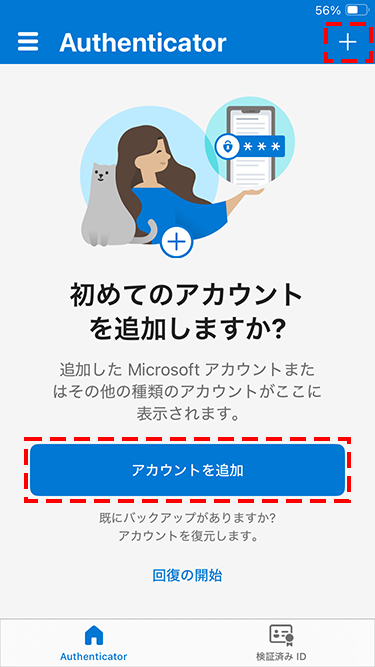
1.1 Launching the Microsoft Authenticator app
Tap "Continue" or similar until the "Add Account" screen appears.
1.2 Access ScombZ (PC)
URL:https://scombz.shibaura-it.ac.jp
Username: SIC ID@sic
Password: Windows password
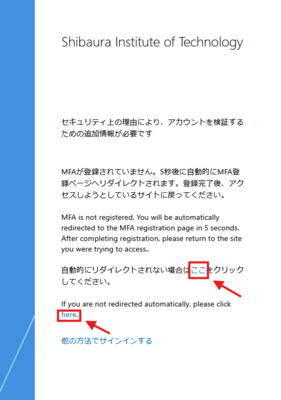
If not redirected, click the "here" link on the screen.
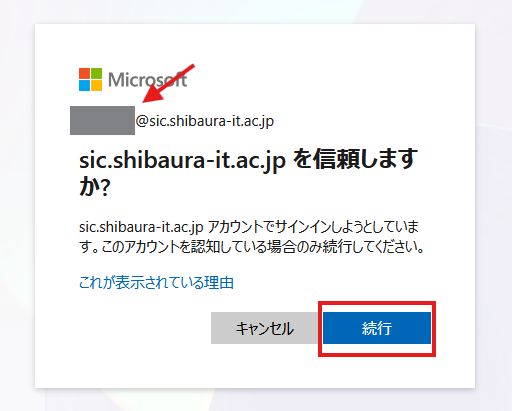
If confirmed, click "Continue".
※If it does not appear, proceed to the next step.
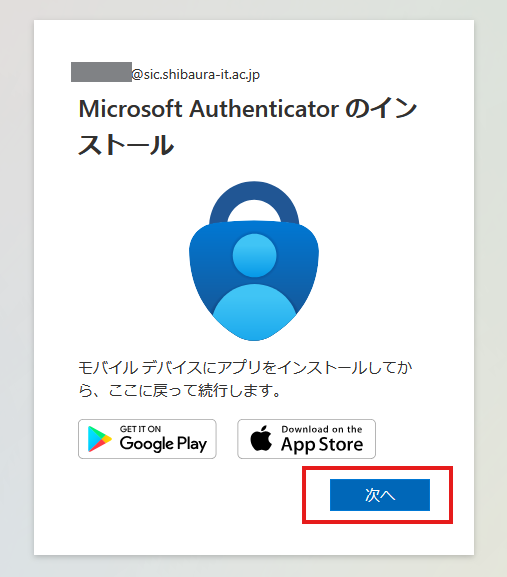
1.3 Add Account to Authenticator (Both PC and Smartphone)
Tap the "+" icon at the top right
Select "Add Account".
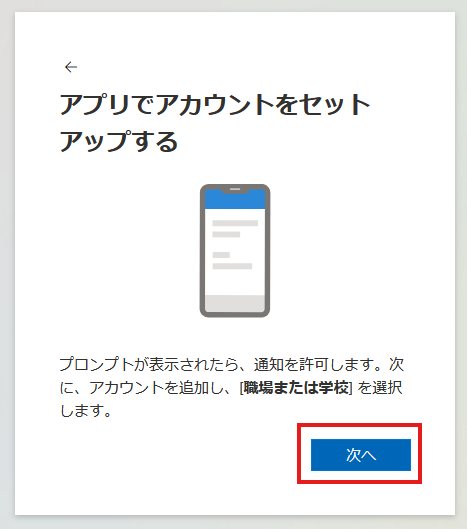
Select "Work or School Account".
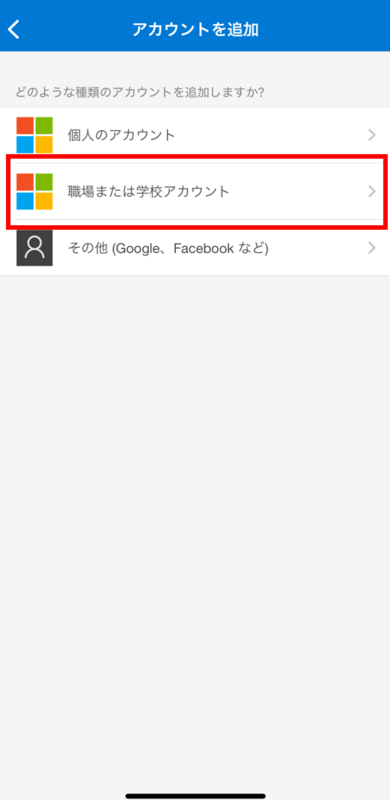
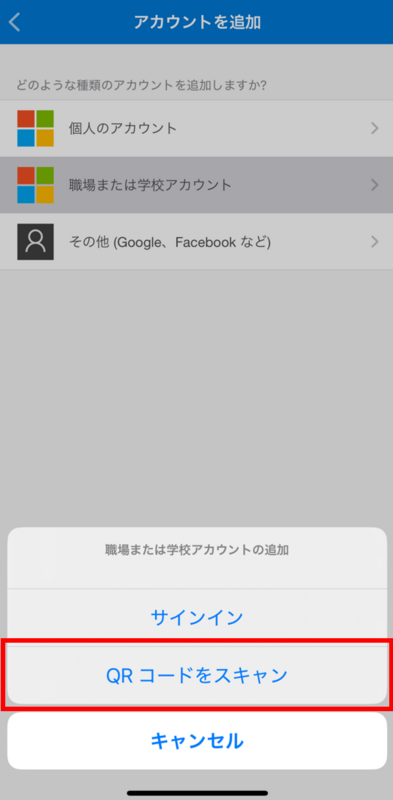
Then, allow notifications.
※If notifications are not allowed, MFA cannot be used.
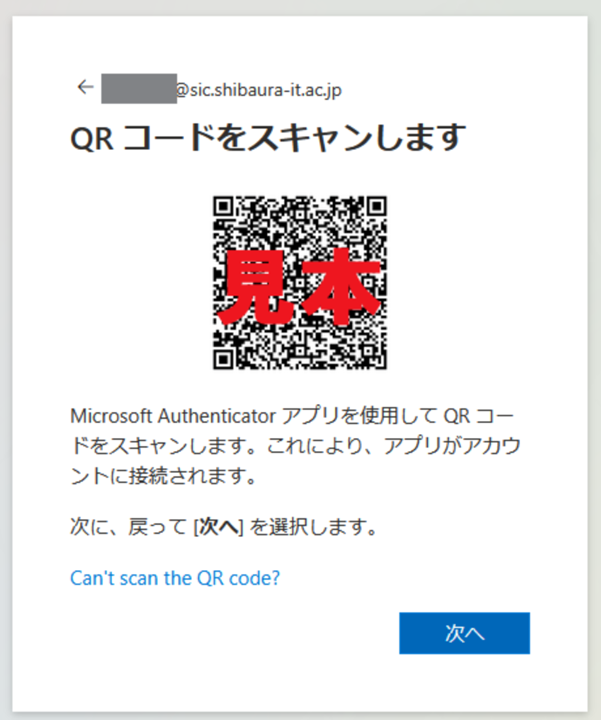
Scan the QR code displayed on the PC in step 1.2 with your smartphone. A two-digit code will appear on the PC.
Follow the on-screen instructions and enter the two-digit code in the app, then tap "Yes".
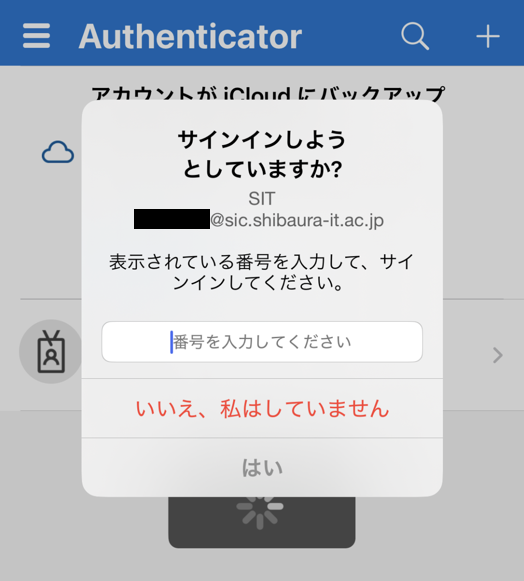
If the PC displays the "Name your app password" screen afterward, set a name with 8 to 16 characters and follow the instructions.
|
※If you change your smartphone, you need to register the new device in Microsoft Authenticator. Before changing devices, connect your current device to the network (e.g., Wi-Fi) and follow the steps in How to Transfer Microsoft 365 Multi-Factor Authentication to register your new device. If your current device is unavailable, a manual reset is required. |
2. Log in to ScombZ
2.1 Access the following URL
https://scombz.shibaura-it.ac.jp
2.2 Click "Log inログイン」をクリック
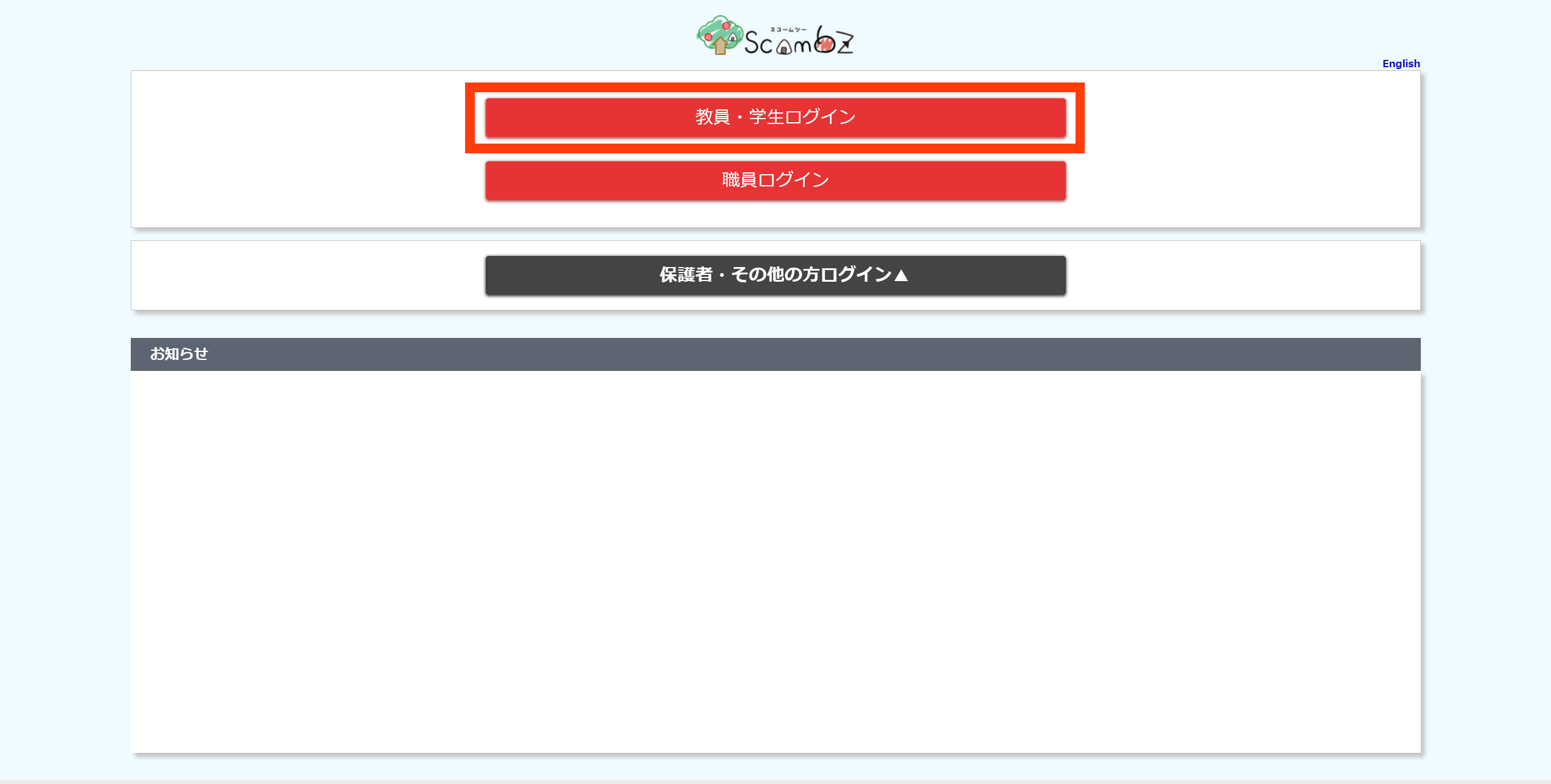
2.3 Enter your "Username" and "Password"
Username: Gakujo ID@sic (e.g., aa00000@sic)
Password: Windows password
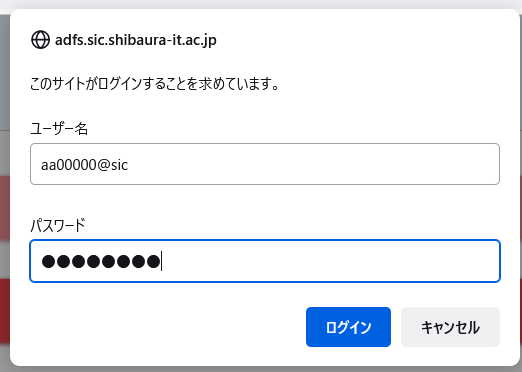
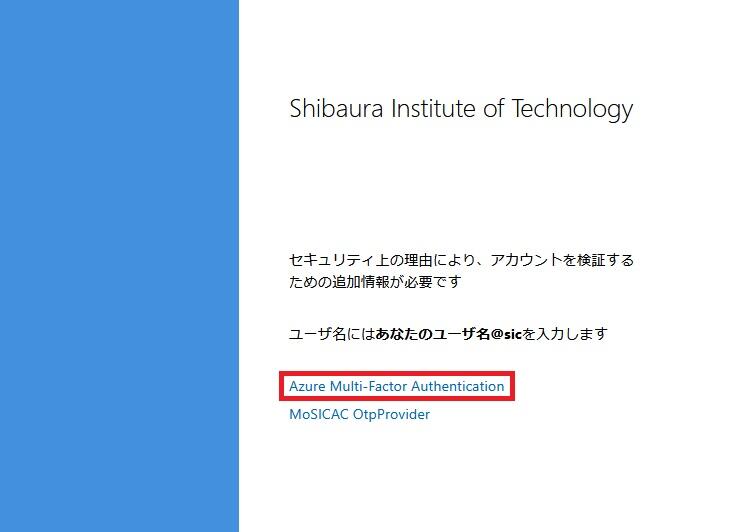
2.4 Click "Azure Multi-Factor Authentication"
Multiple clicks may result in reaching the authentication method limit.
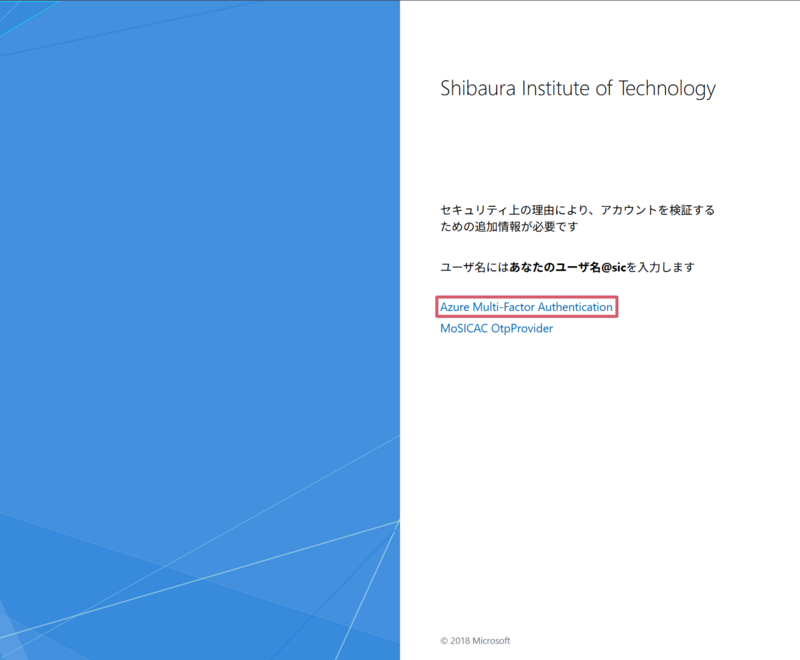
The number is displayed as follows:
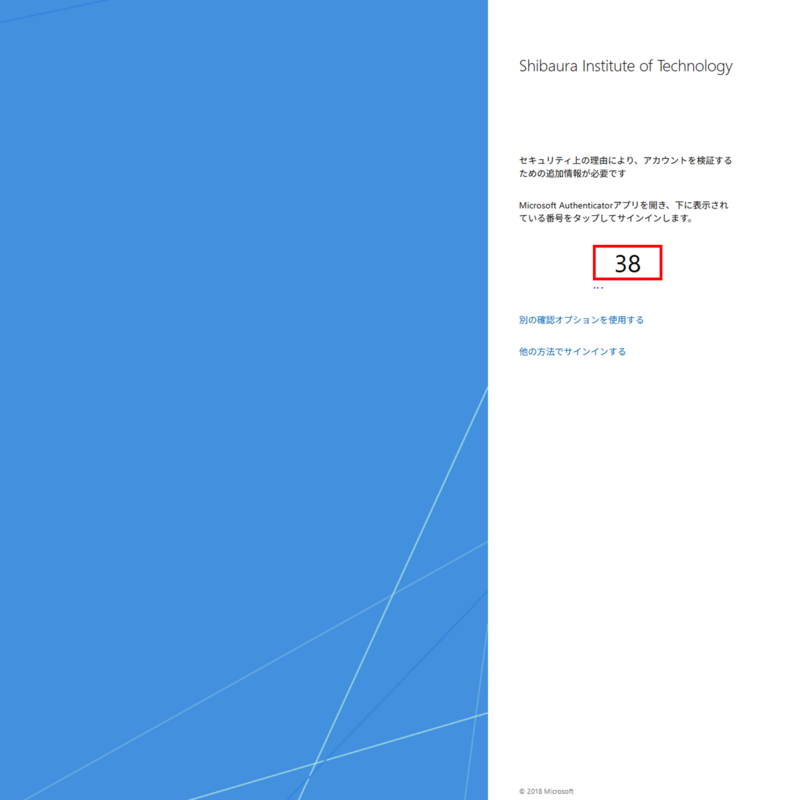
Open the Authenticator app on your smartphone and enter the number.
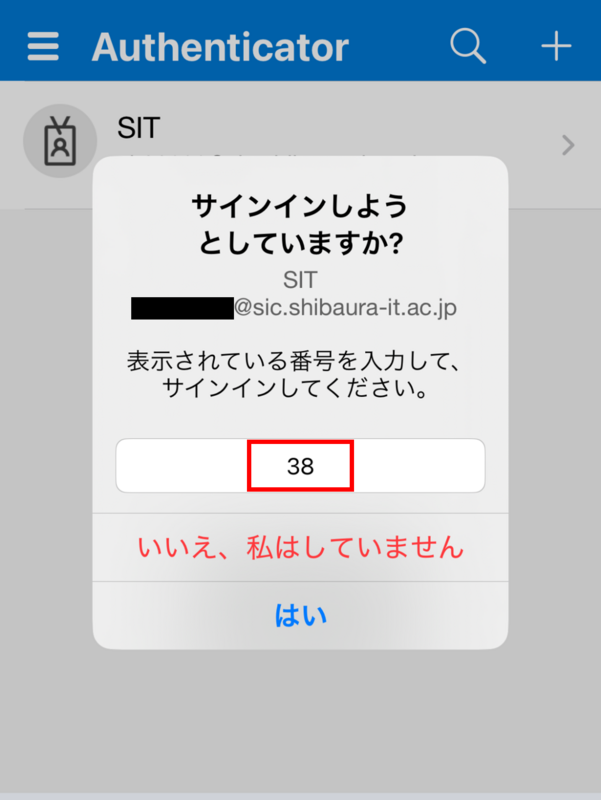
2.5 Login Complete
The ScombZ homepage will be displayed.
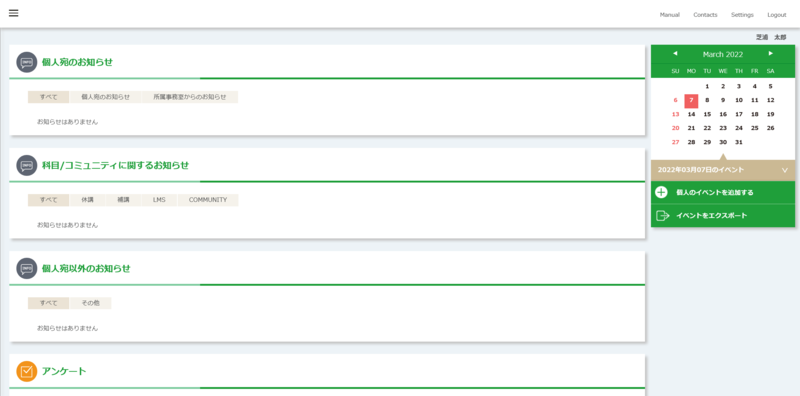
3. Accessing the Community
ScombZ has a feature called Community, separate from the portal site or LMS functions.The Community allows administrators (teachers and staff) to group users into certain units and provides functions for distributing materials and assigning tasks.
This is positioned as an LMS not linked to specific classes.There are various communities, so please check them.
Example: New Student Community
First-Year Department Student Community
Teacher Training Community*
The New Student Community contains a manual for course registration, so be sure to check it.
3.1 Log in to ScombZ (see "1. Logging in to ScombZ")
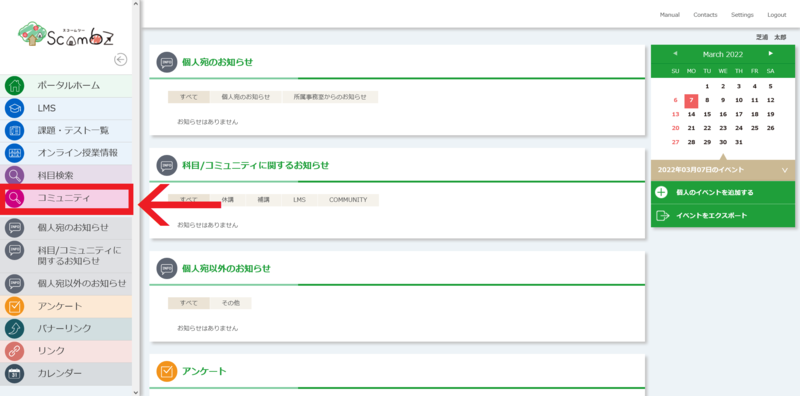
3.2 Click on "Community"
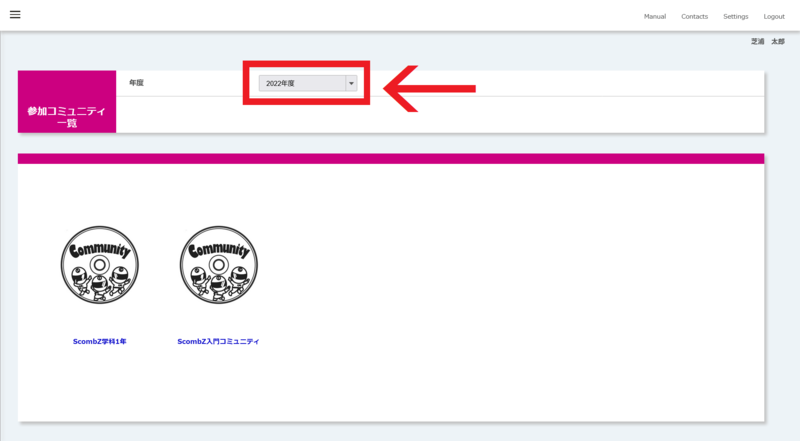
3.3 Select the year
Click on the Academic Year—select the year you start your program.
For example, if your program starts on September 21st, 2025, you belong to the 2025 academic year’s community.
3.4 Access the desired community
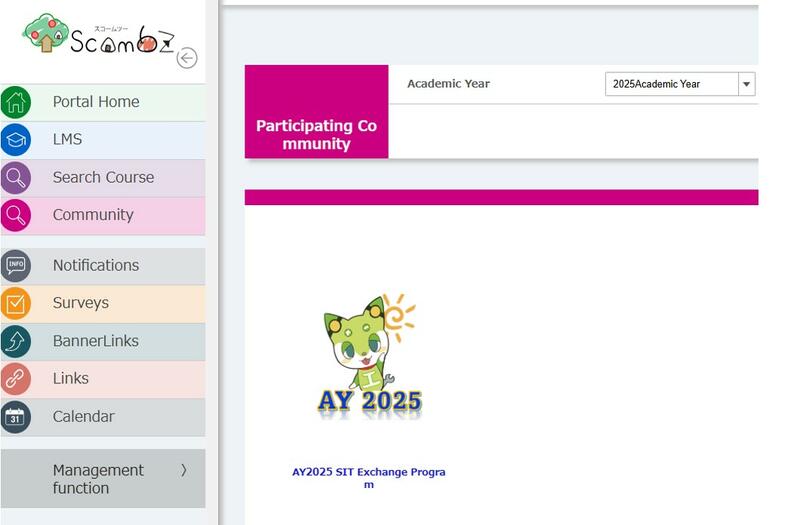
You will see the community appear below.If the community does not appear, please change the Academic Year.
4. Check the announcements on ScombZ
4.1 Click "Notifications"
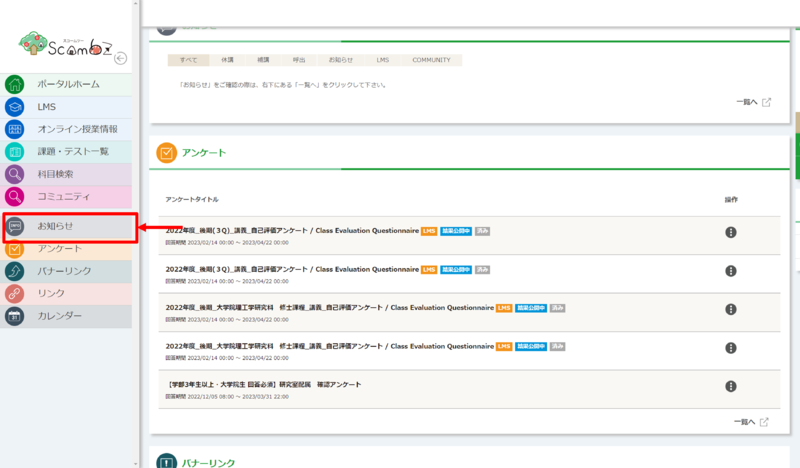
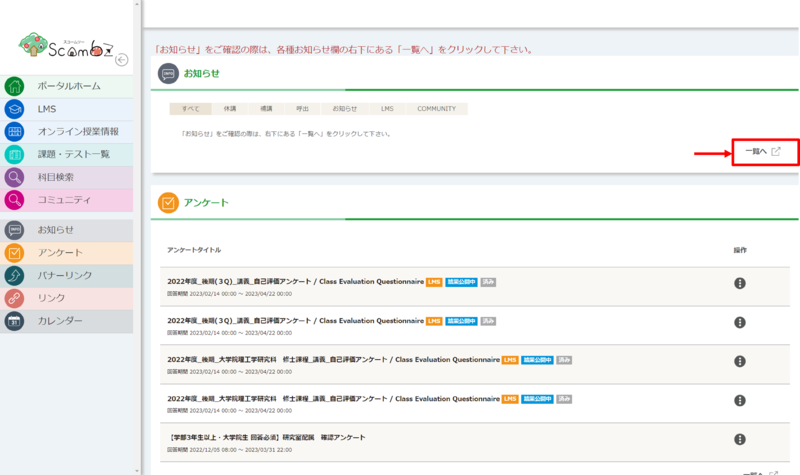
4.2 Click "Go to List"
The notifications will not be displayed unless you click "Go to List"!
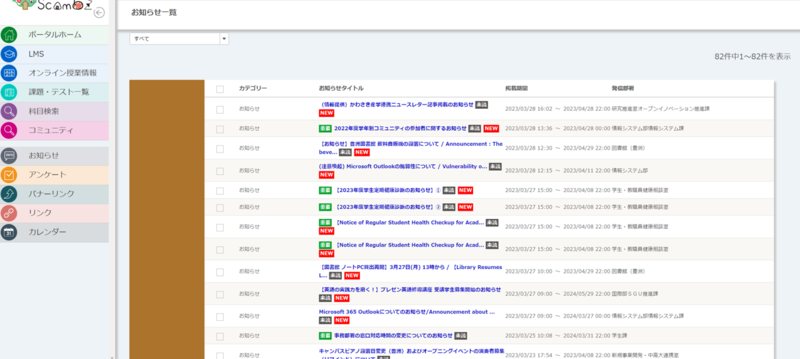
5. Check Notifications
A list of the notifications you are currently receiving will be displayed.
Fin. You are now ready to use ScombZ.
Let's review what you have learned on this page:
★ In "1. Setup Microsoft 365 Multi-Factor Authentication", you
★「2. ScombZにログインする」にて、ScombZにログインできるようになった
★「4. コミュニティにアクセスする」にて、コミュニティにアクセスできた
★「5. ScombZにある、お知らせを確認する」にて、お知らせを確認できた
すべて完了したら、「授業の準備を受ける準備をする」に戻ろう。
Problems or Not Ready?
Please contact oshiete@sic.shibaura-it.ac.jp
Note: Student staff will reply to emails sent to the student mailing list. Please be mindful of the content.
For more details on how to make an inquiry, please see here.