
Home > Frequently used guides and links > Frequently used guides and links (for the first time) > Guidelines for new students > omedeto > Let's get ready for class > How to Use Zoom
How to Use Zoom
Updated 2026/01/27
At Shibaura Institute of Technology (SIT), in addition to in-person classes, we offer various types of classes, including online classes, on-demand classes, and flipped classrooms.
Therefore, we will explain how to log in to Zoom for online classes and how to view class videos.
| Goals |
・Install Zoom |
Table of Contents
1. Installing Zoom
You will install Zoom on your device and perform a connection test for online classes.
1.1 Download the Zoom installer
Go to the Download Center
In most cases, choose “Download (64 bit)”
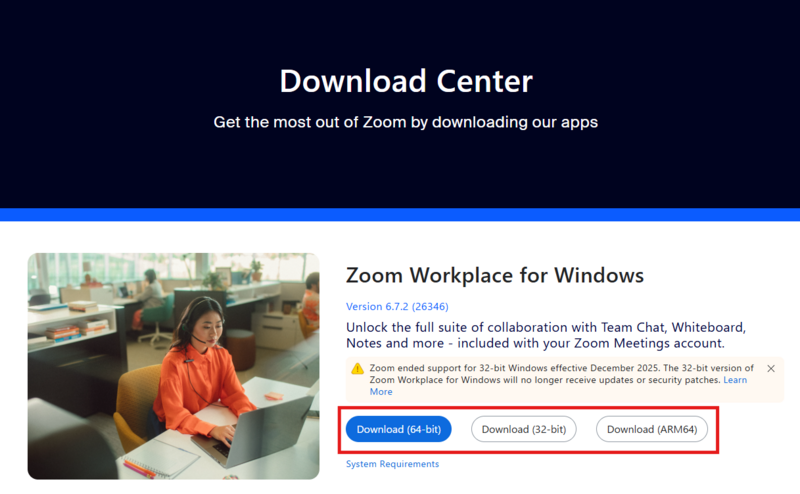
1.2 Launch the installer (ZoomInstallerFull.exe).
※The installer name may vary.
1.3 The installation will proceed.
2. Singing in to Zoom
Use your Windows account (username and Windows password) to sign in with SSO. You cannot use a Google account.
If you sign in using the wrong method, you will see a message saying “You do not have permission” and will not be able to join online class meetings.
2.1 Sign in with SSO
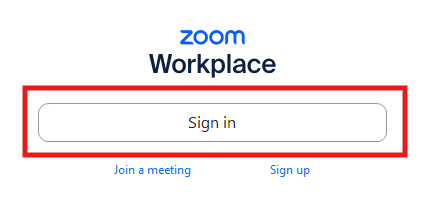
※You cannot sign in correctly using “Email” or services such as Apple or Google.
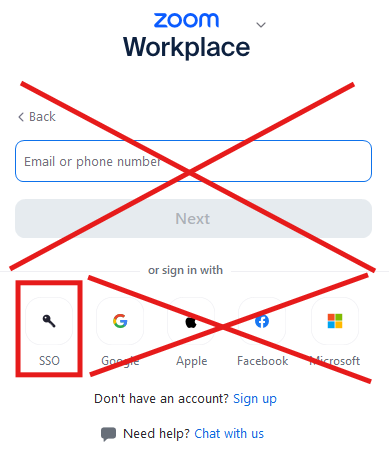
2.2 Enter the domain (shibaura-it).
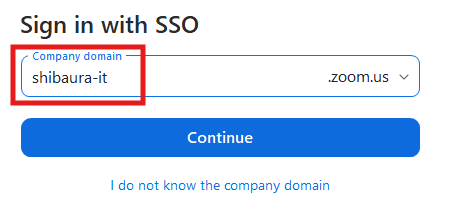
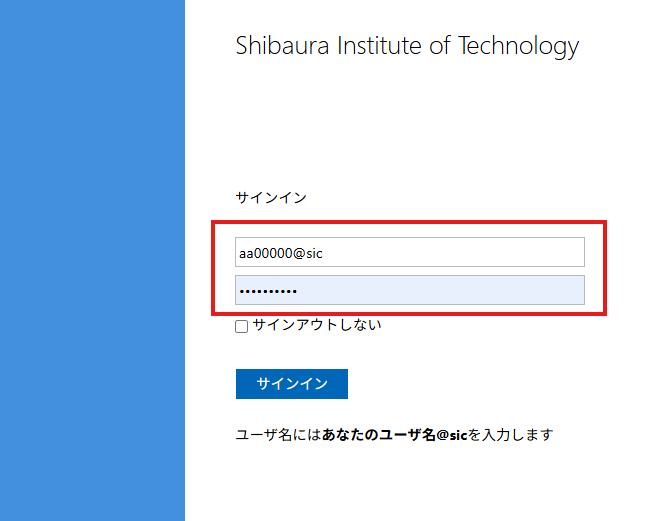
2.3 Enter your ADFS authentication username and password, then click “Sign in.”
username:SICID@sic(例:aa00000@sic)
password:Windows password
※The display may vary depending on the web browser.
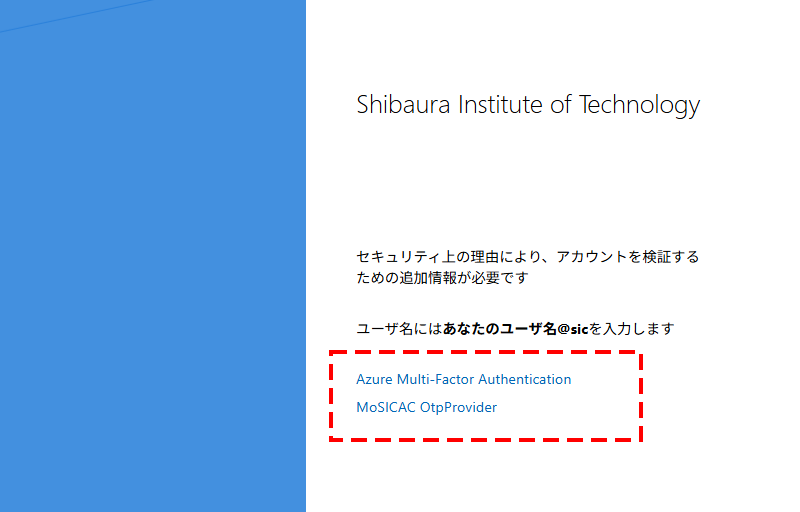
2.4 Click “Azure Multi-Factor Authentication” to complete multi-factor authentication.
Reference Guide: How to Use Microsoft 365 Multi-Factor Authentication

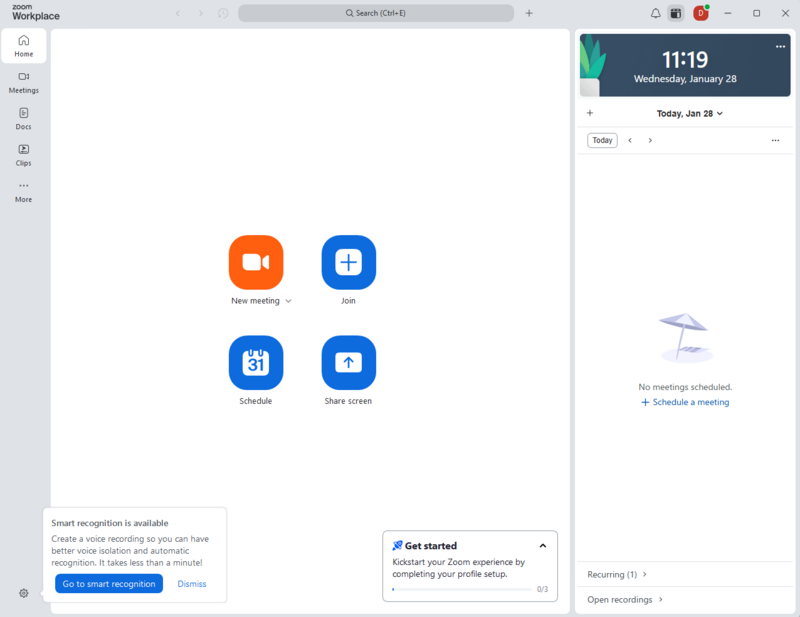
2.5 Sign in complete
Other Usage Methods
For detailed instructions on how to use Zoom, please refer to here.
Fin. Setup is complete.
Let's review the settings you made on this page:
★「1.Installing Zoom」, you set your Windows password.
★「2. Singing in to Zoom」, you installed the app (Microsoft Authenticator).
If both are complete, proceed to the next step.
Problems or Not Ready?
Please contact oshiete@sic.shibaura-it.ac.jp
Note: Student staff will reply to emails sent to the student mailing list. Please be mindful of the content.
For more details on how to make an inquiry, please see here.