
ホーム > 良く使うガイドとリンク > 良く使うガイドとリンク(はじめて) > 新入生のためのガイド > omedeto > メールを使おう
Let’s access AMI
2025/02/25 更新
AMI is short for Account Management Interface. It is a web interface used to manage account information for the Academic Information Center.
To use AMI, you must be connected to Shibaura’s network. On campus, you can simply connect to an on-campus network such as the SRAS wireless LAN. However, if you want to use AMI from home, via a smartphone network, or from public/free Wi-Fi, you need to use GlobalProtect.
In addition, to connect to the SRAS wireless LAN, you must submit an application through AMI.
| Goals to achieve | ・Install GlobalProtect. ・Use GlobalProtect to connect to SRAS-VPN. ・Log in to AMI. ・Apply for the SRAS wireless LAN. |
1. Install GlobalProtect
1.1 Access the URL below.
※If you are using a browser translation feature (e.g. Google Chrome), please turn it off.
https://gpvpn.sic.shibaura-it.ac.jp
Enter your username and password, then click “LOG IN.”
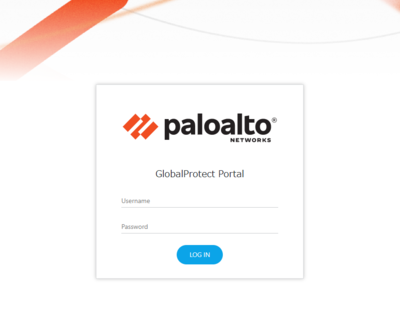
Username:SICID@sic(e.g. aa00000@sic)
Password:Windows password
1.2 Select the file to download
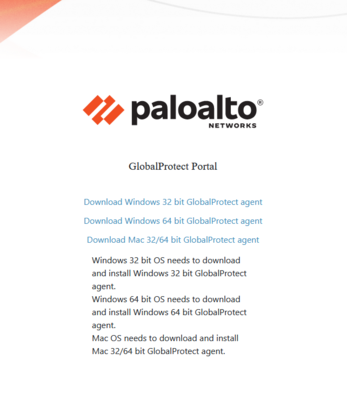
After you log in, select the appropriate download file for your PC.
In most cases, choose “Download Windows 64 bit GlobalProtect agent.”
1.3 Install the software
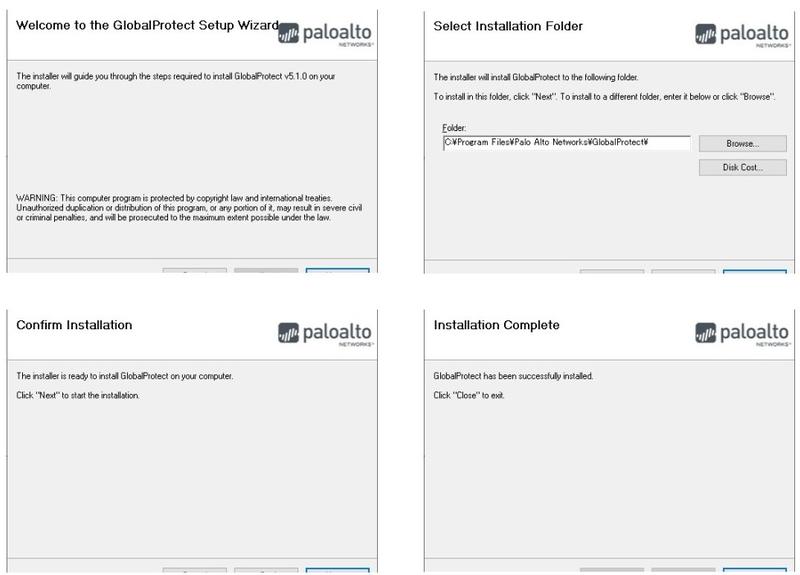
No settings need to be changed.
1.4 Installation complete
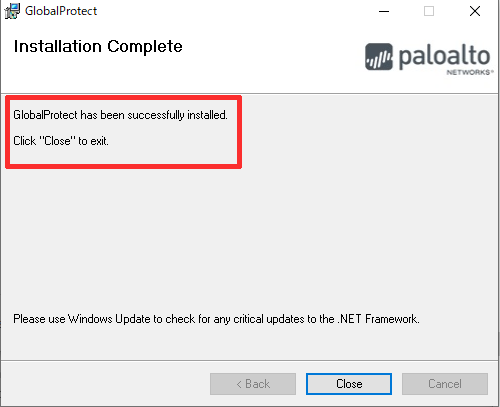
When the message “GlobalProtect has been successfully installed.” appears, click “Close” to finish the installation.
2. Initial setup of GlobalProtect and how to connect to SRAS-VPN
2.1 Right-click the GlobalProtect icon
Click “^” in the lower-right of the taskbar, then right-click the GlobalProtect icon.
※1 If the icon does not appear, open it from Start Menu → Palo Alto Networks → GlobalProtect.
※2 From the second time onward, you can start from the screen in 2.3 and connect simply by clicking the “Connect” button.
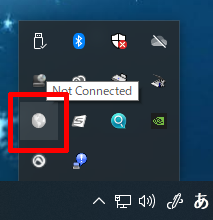
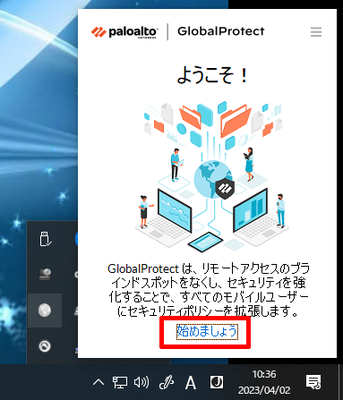
2.2 Click “Let’s get started”
A welcome screen will appear. Click “Let’s get started.”
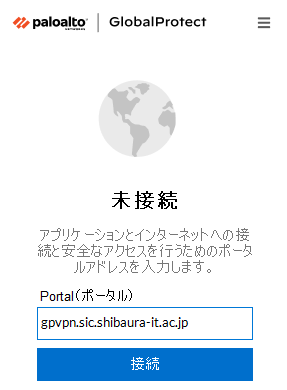
2.3 Enter the portal address
address: gpvpn.sic.shibaura-it.ac.jp
※Make sure you enter the address correctly.
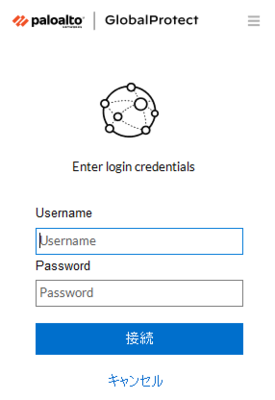
2.4 Enter your username and password as follows, then click “Connect”
Username:Student ID
Password:Windows password
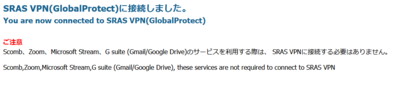
2.5 Connection complete
Once the connection is established, your default browser will open and a message like the one below will be displayed.
3. Disconnect the SRAS VPN
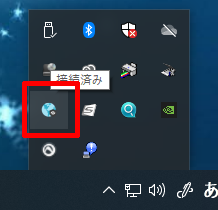
3.1 Right-click the GrobalProtect icon
After clicking the “^” in the lower-right corner of the taskbar, right-click the GlobalProtect icon.
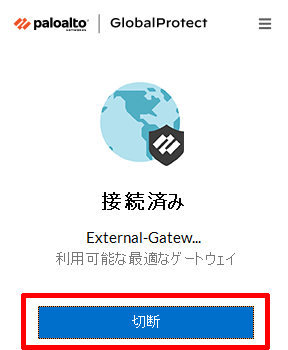
3.2 Click “Disconnect”
3.3 Disconnect coplete
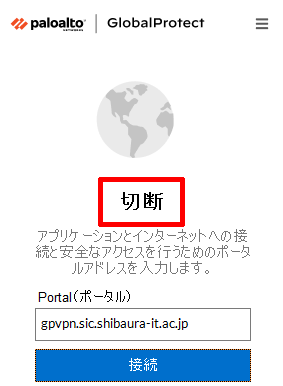
If “Disconnect” is displayed, the disconnect is complete.
※After installation, manually updating the app may prevent connection depending on the version.
Please uninstall the app and reinstall Global Protect.
If the installed version does not work, please install a different version from here.
4. Log in to AMI
4.1 While connected to GlobalProtect, access the following address
Open this page and log in to AMI.
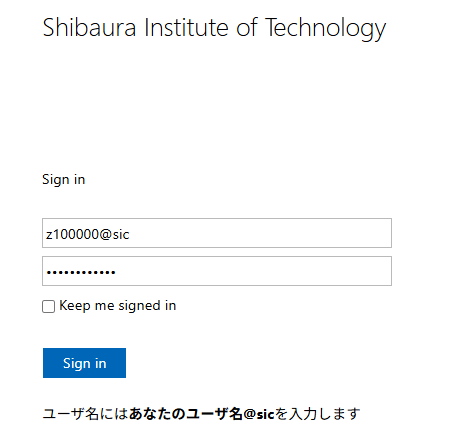
4.2 Log in
・ID: Student ID@sic (Example: z100000@sic)
・Password: Your Windows/ADFS password (Note: This is the same password used for ScombZ)
Enter these details and click Sign In.
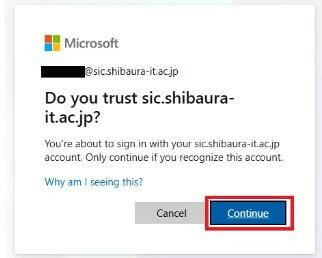
When the following screen appears, select Continue.
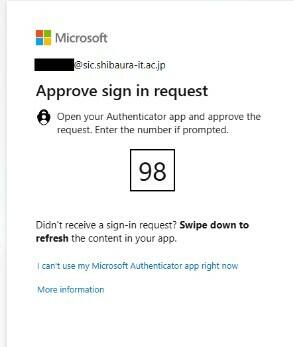
4.3 Enable multi-factor authentication using Microsoft Authenticator
Enter the authentication code displayed on the screen using your smartphone to complete authentication.
User Guide: How to Use Microsoft 365 Multi-Factor Authentication
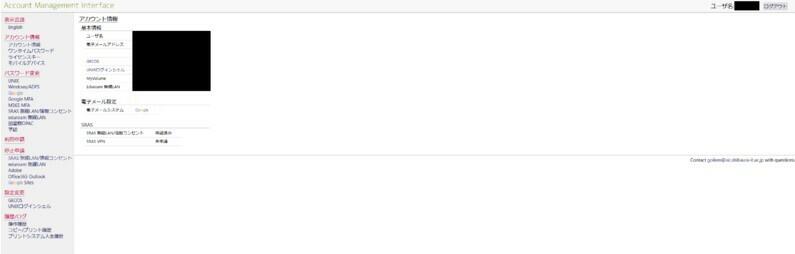
4.4 Login complete
After logging in, you will see the following screen.

5. Apply for an SRAS wireless LAN
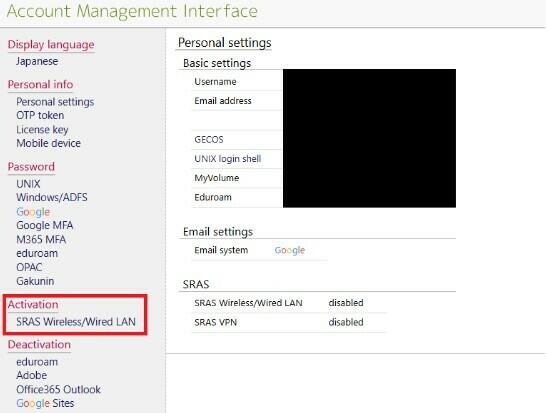
5.1 Apply for Use of the SRAS Wireless LAN
After logging in, select “SRAS Wireless/Wired LAN” from the Activation.
5.2 Set the password for the SRAS wireless LAN
Enter a password that meets the password requirements, then select “Submit”.
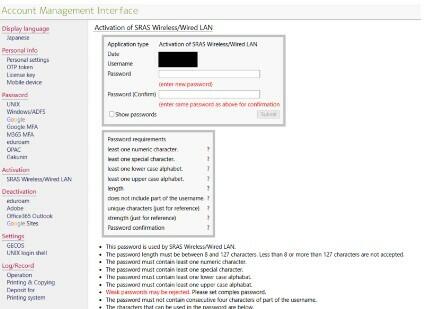
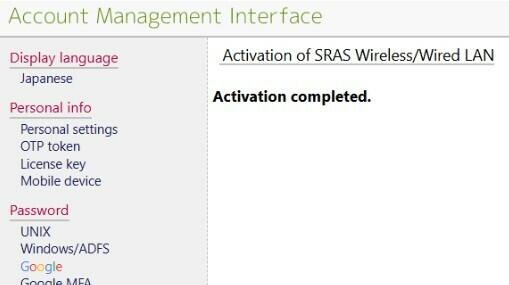
If there are no issues, your application to use the SRAS wireless LAN is complete.
ex1. If you want to install Global Protect on your smartphone
ex2. FAQ About Troubleshooting
- GlobalProtect indicates "Connection failed".
- Cannot enter S*gsot because cannot connect to GlobalPlotect
Fin. Setup is complete.
Let's review the settings you made on this page.
★ 1. Installing GlobalProtect: GlobalProtect has been successfully installed.
★ 2. GlobalProtect Initial Setup and SRAS-VPN Connection Method and 3. Disconnecting from SRAS-VPN demonstrate how to connect to and disconnect from the SRAS-VPN.
★ 4. I was able to log in to AMI under “Log in to AMI”.
★ 5. Apply for SRAS wireless LAN The application for SRAS wireless LAN has been completed.
If everything is complete, let's move on to the next step.
What if it doesn't work or I'm not ready?
Please contact oshiete@sic.shibaura-it.ac.jp
※Student staff will reply to student inquiries ML. Please pay attention to the content.
For details on how to contact us, please click here.